An AV checklist is a list of questions to answer in order: what the venue can supply (power, rigging, access, rules), what every presenter will plug in, how audio and video each get from source to room, and how you'll test, run and pack it all. This guide walks through those phases from the first venue visit to load-out. Figures for your own event come from your venue, your equipment's specifications and your AV provider, not from a generic rule.
Weeks Out: Venue Walkthrough and Power Questions
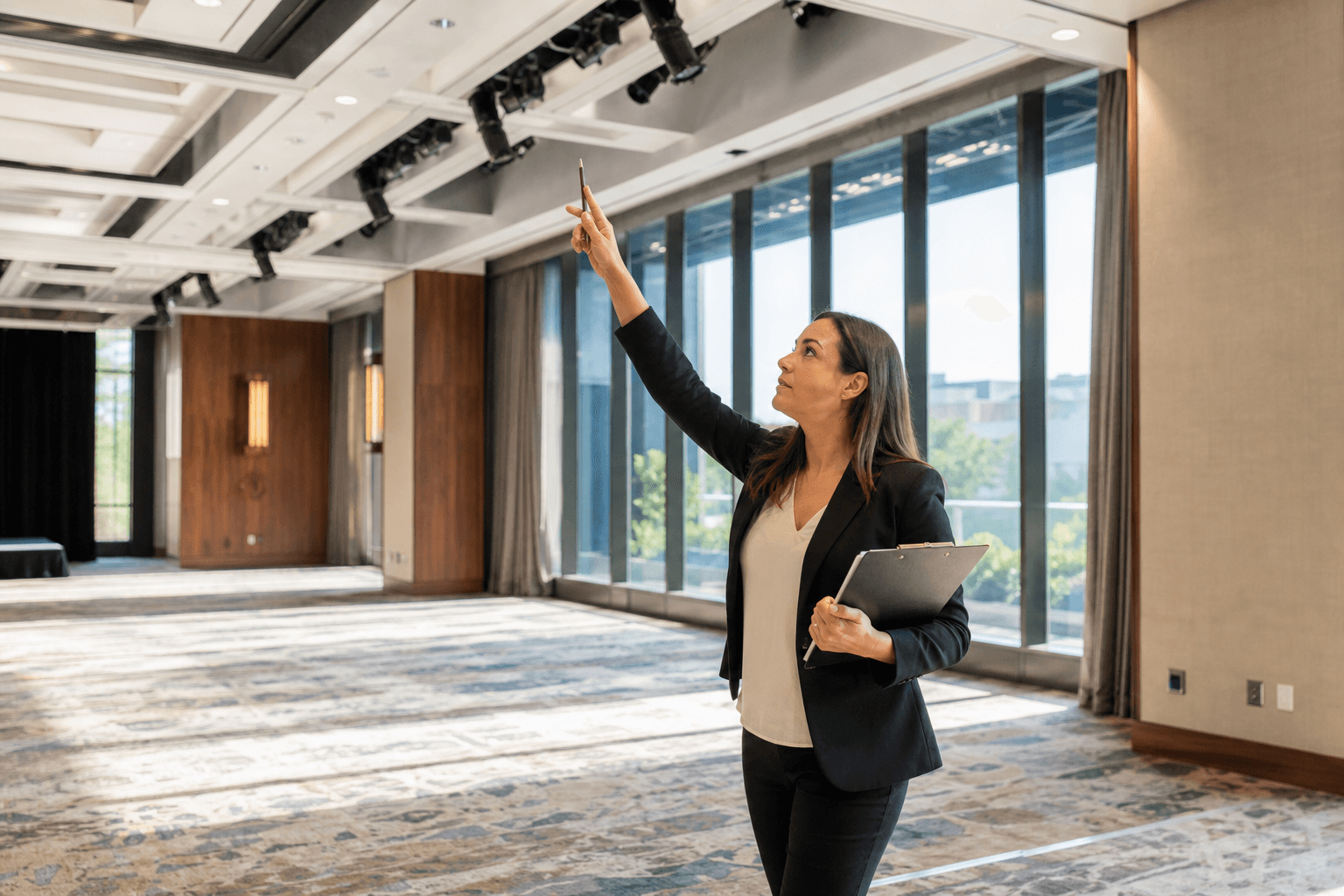
Start with a walkthrough. Bring a floor plan, a tape measure and your phone's camera, and come back with answers, not guesses:
- Power. Ask the venue's engineer or electrician which outlets are on which circuit, what each circuit is rated for, and what else shares it (catering equipment, house lighting). Don't assume a ballroom wall circuit rating; ask.
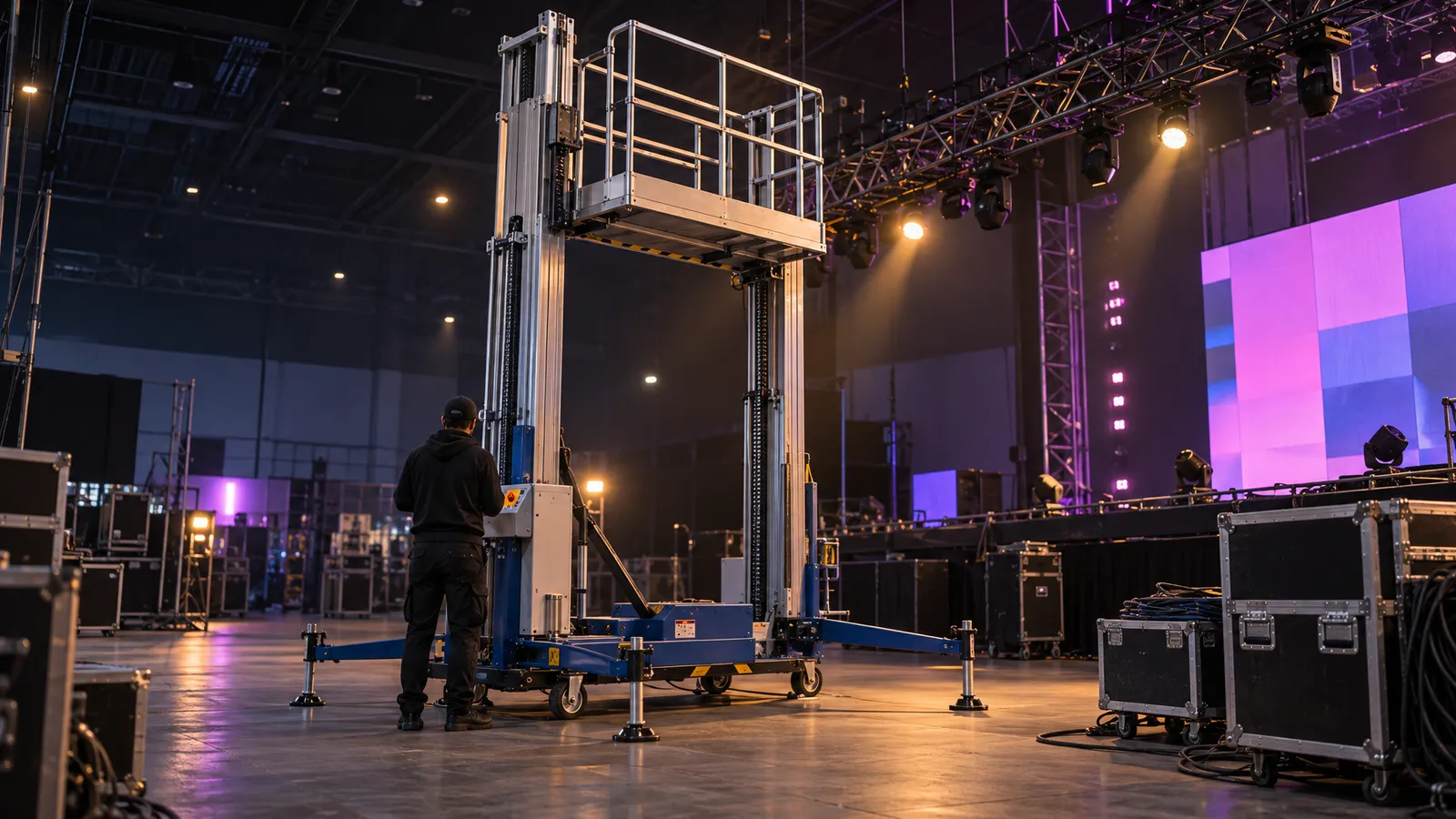
- Rigging and height. Measure ceiling height and ask whether anything may be hung, from where, and with whose written approval. For aluminum truss and towers, the industry standard is ANSI E1.2 (Design, Manufacture and Use of Aluminum Trusses and Towers), published by ESTA. Our truss and rigging checklist covers the pre-rig questions.
- Daylight. Note where windows are and whether they have blackout coverage. Check the room at the time of day your sessions run.
- Layout. Ask catering where buffets and bars go before you place a portable stage, screen or cable runs, and route cables away from walkways.
- Rules. Request the venue's technical specifications and AV rules: any house sound or projection, what control you'd have over it, and whether special effects such as haze, fog or cold spark machines are allowed and what approval they need. Our fog vs haze guide explains why venues ask.
- Access. Loading dock location and hours, elevator size, the building contact for deliveries, and any certificate of insurance the venue requires, with its deadline.
Working out a power budget
Power planning belongs with the venue's electrician, but you can prepare the inputs. List every powered item with the electrical input rating from its nameplate or spec sheet (input current where it's given, not audio output wattage). Group items by the circuit they'll share. Then ask the electrician to check each circuit's load against its rating.
One reason not to fill a circuit to its number: Schneider Electric explains that under the National Electrical Code a branch-circuit breaker must be rated to handle the noncontinuous load plus 125% of the continuous load, where a continuous load is "one where the maximum current is expected to continue for 3 hours or more" (Schneider Electric). Whether a given piece of equipment counts depends on how its maximum current behaves, not simply on how long the event runs, so hand the electrician your list and let them classify the loads and allocate circuits or recommend distribution.
Two Weeks Out: Presenters, Signal Flow and Deliveries
Send a speaker tech requirements form to every presenter: laptop and operating system, video outputs and adapters (HDMI, USB-C, DisplayPort), whether they bring a clicker, and whether their deck plays video or audio. Embedded video still needs a test on the actual presentation computer, because playback depends on the file, the software and the machine. Ask for a local copy of any online video and keep compatible backup files on a USB drive.
Draw two signal flow diagrams, one for audio and one for video, because they usually travel different paths:
- Audio: microphones and laptop or playback audio → mixer → amplified speakers, plus a feed to any recording.
- Video: laptops and playback sources → video switcher or presentation switcher → main screen and any confidence monitors, plus a recording feed if you need one.
Where one device handles both, name it in the diagram. The diagram is what your crew works from on the day, so label every input and output with the name you'll write on the cable.
Confirm deliveries now. VENEGEEST offers same-week delivery across the Bay Area for most items, and availability, including for LED walls, is confirmed for your date when you request a quote. For delivered setups, VENEGEEST's rental terms ask the client to provide accurate venue details (load-in access, power supply and timing windows) and to secure any venue permits or approvals the installation needs, and say standard setups need a minimum of two hours.
Lock in your backup kit: a spare microphone, spare video cables and adapters, and every presentation on a USB drive, ideally preloaded on a second laptop.
Load-In Day: Staging, Cables and Placement
Stage everything in one area first and check each item against the packing list before anything goes to its final position. Power-test critical gear before you run cable, so a fault shows up while there's time to fix it.
Tape down or ramp every cable that crosses a walkway, and label both ends of every cable with the name from your diagram ("Mic 1," "Screen In," "Truss Power A"). Labels turn a mid-show fault from a hunt into a check.
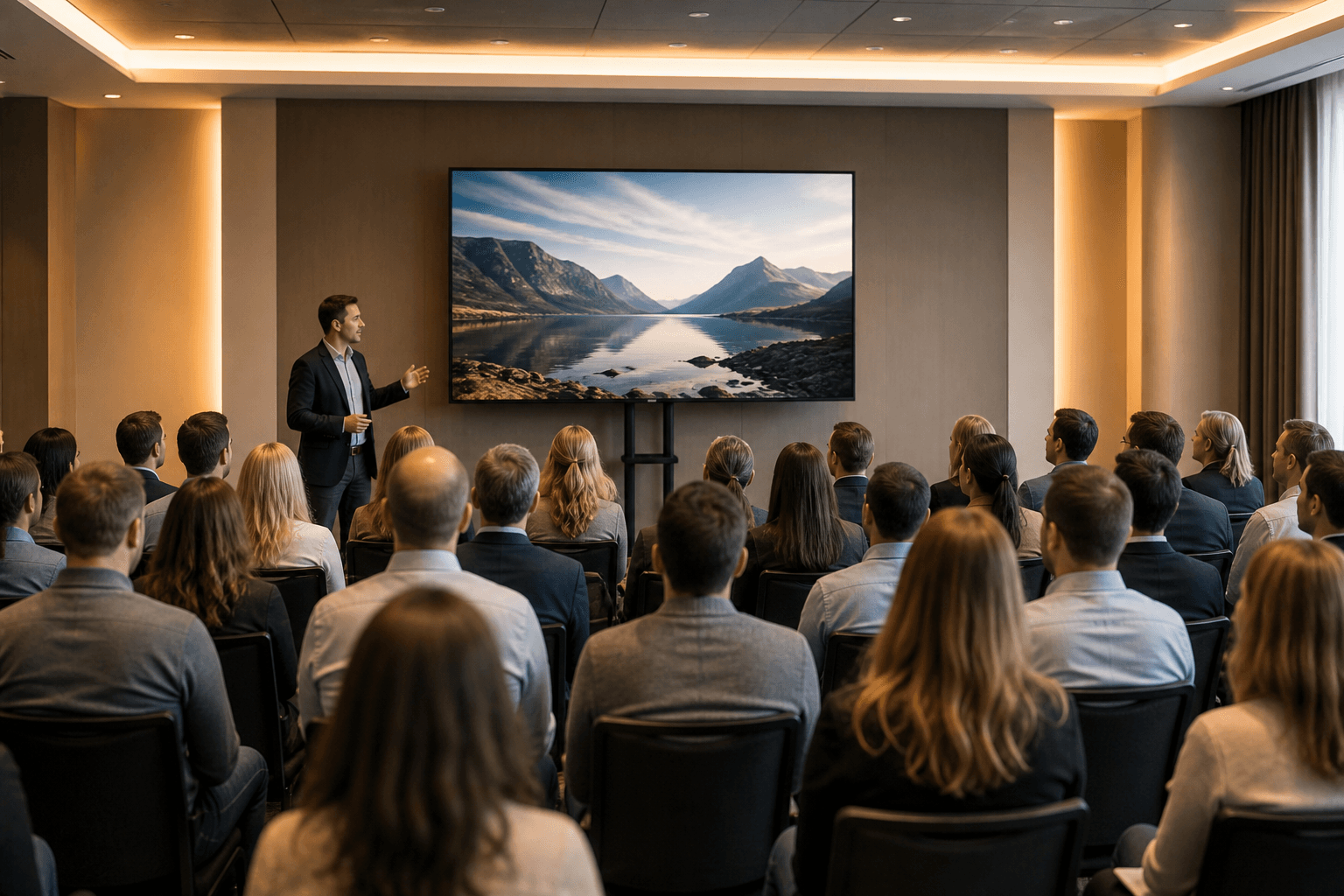
Placement depends on the room, the content and the equipment, so work from sightlines rather than fixed distances: can the back row read the smallest text on the slides, and can everyone see over the heads in front? Our TV and LED wall sizing guide covers screen size. For speakers, Shure's feedback guidance is to "keep microphones and loudspeakers far away from each other" and to "move the loudspeaker closer to the listener so less overall system volume is required" (Shure), so keep the main speakers in front of the presenter's microphone position, not behind it.
Before Doors: Sound Check and Display Check
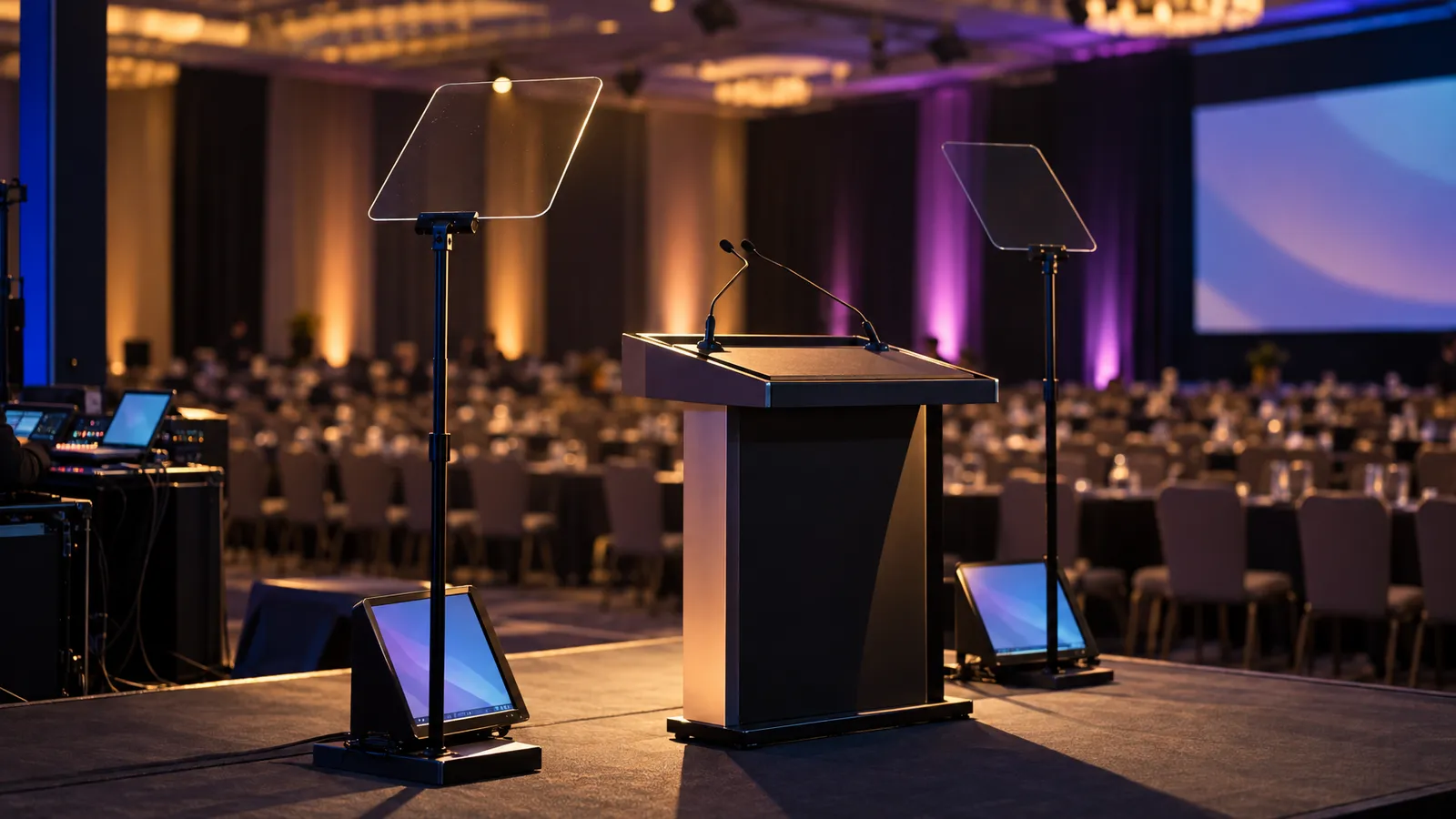
Run the sound check with a person, not a guess. Someone speaks at the podium at normal presentation volume while a spotter walks the room, especially the back and the sides. If the spotter can't hear clearly, have your sound operator work through the causes before simply turning up: microphone position, how many microphones are open, speaker placement and gain structure. Shure lists the basics: "Move the microphone closer to the desired sound source," "reduce the number of open microphones," and "use a directional microphone to increase the amount of gain before feedback." EQ is a tool for a qualified operator to reduce the specific frequencies that ring in that room, measured on the day.
Test every presenter laptop on the actual switcher and screen. PowerPoint's Presenter View runs with the displays extended: Microsoft says that when you enter Slide Show, "PowerPoint automatically changes your display settings… to Extend," and the Set Up Slide Show settings choose which monitor shows the slides (Microsoft). So the check is not "mirror or extend," but whether the slides land on the output feeding the screen and the notes on the presenter's laptop. Walk to the back of the room and advance slides with the clicker to confirm its range.
If you're recording, make a short test recording and play it back to confirm the audio and video are both there and in sync. Then walk the lighting cues and check for glare on the screen and shadows on presenters' faces.
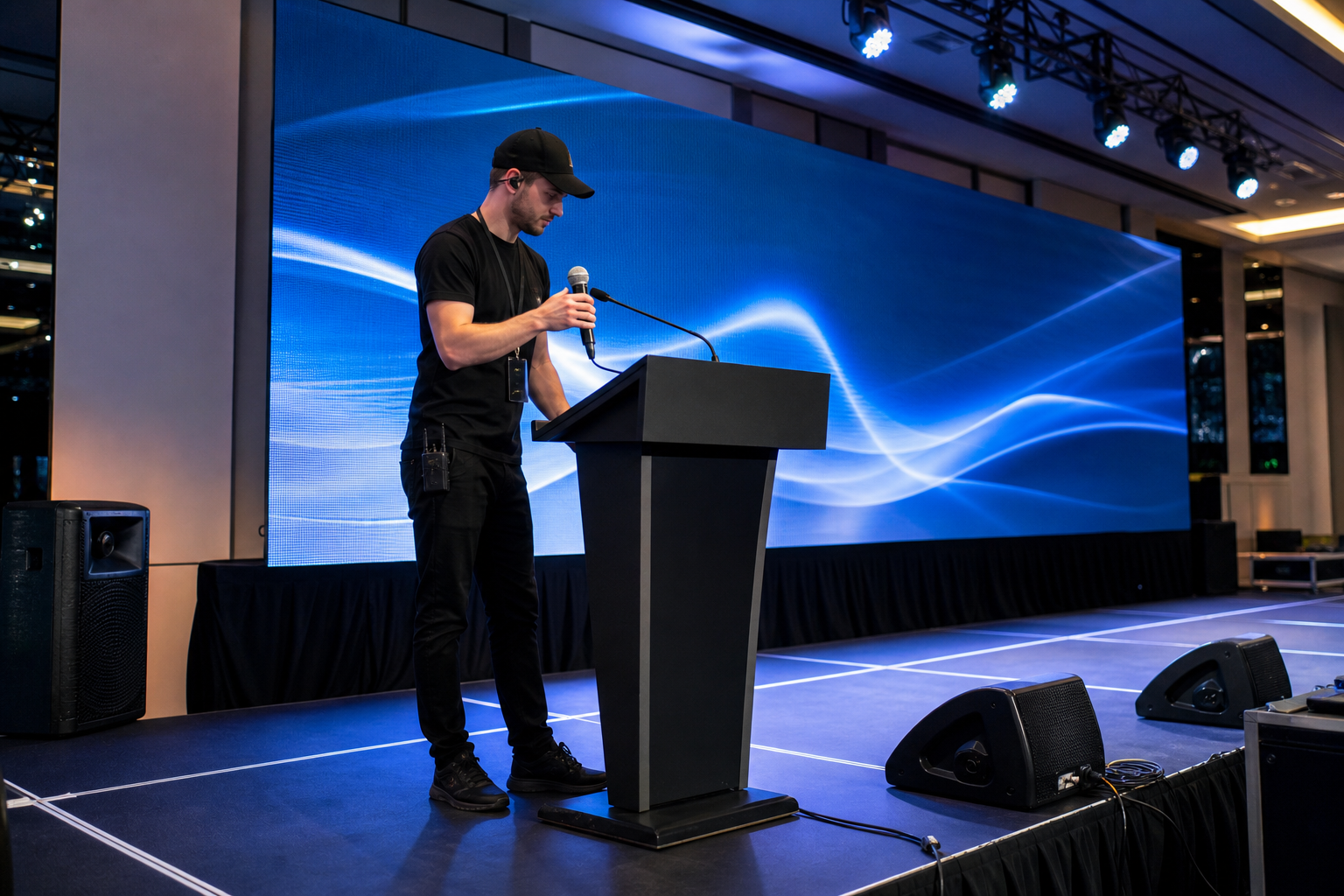
During the Event: Monitoring and Quick Fixes
Seat the crew where they can see the stage, the screen and the audience. The common failures to watch for are wireless microphones dropping out or running down batteries, laptops sleeping or losing their video connection, and missed cues. Keep the spare microphone ready at the tech table and change batteries at breaks as your equipment's guidance requires.
Presenters vary in volume, so the operator rides levels throughout. If feedback starts to build, the operator reduces the gain of the microphone that's ringing and addresses the cause (a presenter walking in front of a speaker, an extra microphone left open) rather than chasing it with EQ alone. Shure notes that feedback is sound from the speakers getting back into the microphone and being amplified again.
Have the next presenter's laptop connected and tested before they're introduced. Keep a simple log of any problem, the time and what fixed it. It becomes your post-event report.
Strike and Load-Out
Check your venue contract for the time you must be out and any overtime charges. Power down before unplugging, and follow each fixture's manual for cooling before it's packed, especially lamp-based lights. Coil cables neatly and check every item against the packing list; small items like receivers and clickers are the ones that go missing.
Inspect equipment as you pack and photograph any damage. VENEGEEST's rental terms ask renters to report any malfunctions or damage immediately, and say that if equipment malfunctions during your rental, VENEGEEST "will make every reasonable effort to provide a replacement." Call 415-890-5555.
Before you leave, walk the room with the venue contact, note its condition, and keep a written or photo record of the handover as your own documentation. Clear stray tape and cables so the venue has nothing to clean up.
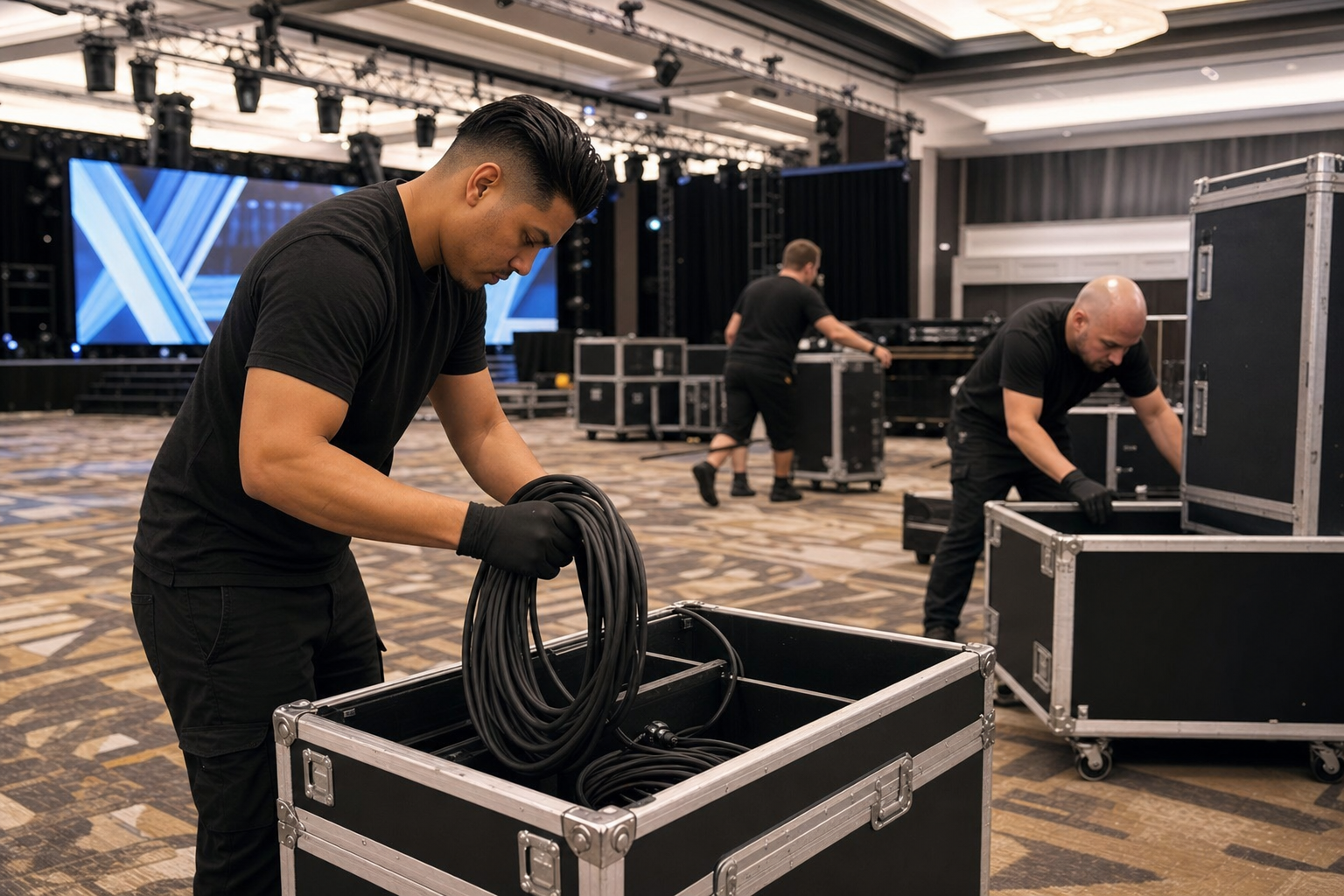
After the Event: Debrief
Hold a short debrief with your AV provider and other vendors while the details are fresh. Go through your log and sort each issue into equipment, operation or venue. Report equipment faults to the rental company, turn operation issues into briefing notes for next time, and record venue limits (circuits, rigging, dock hours, daylight) for the next event there. Add anything you had to improvise to your master checklist.
Conference Audio Visual Checklist: What a Multi-Room Event Adds
A conference runs the same phases, but once per room and with more changeovers. Add these to the list:
- A plan for every room. Repeat the power, signal flow and sightline questions for each breakout room, not only the main hall, and give each room a named person who reports problems.
- Presenter files and changeovers. Collect decks ahead of time, test them on the machine that will run them, and have the next presenter connected and checked before the session starts, as described above.
- Recording and remote feeds. Decide which sessions are recorded or streamed, and include those outputs in the signal flow diagram for that room.
- Assistive listening. Under the 2010 ADA Standards, "in each assembly area where audible communication is integral to the use of the space, an assistive listening system shall be provided," with an exception (other than in courtrooms) where audio amplification is not provided (2010 ADA Standards, 219.2). Ask the venue which of your rooms have a system and receivers, and plan for the rooms that don't.
- Screens for the back of large rooms. In a deep room, check whether the back rows can read the main screen, and add screens if they can't; our sizing guide helps.
Quick Reference: AV Checklist by Phase
- Weeks out: venue walkthrough; circuit ratings and shared loads from the venue's electrician; rigging approval; daylight check; venue AV and effects rules; dock and insurance requirements.
- Two weeks out: speaker tech form; separate audio and video signal flow diagrams; delivery windows; backup kit.
- Load-in: inventory against the packing list; power-test critical gear; tape and label every cable; place screens and speakers by sightlines and microphone positions.
- Before doors: sound check with a spotter; every laptop tested on the real switcher and screen; test recording; lighting cue walk-through.
- Strike: follow fixture cooling guidance; inventory; photograph and report damage right away; document the room handover.
FAQ: Event AV Planning Questions
What should be on an audio visual checklist for a corporate event?
Venue power (circuit ratings and what shares them, from the venue's electrician), separate audio and video signal flow, rigging and ceiling clearance, a backup kit (spare microphone, spare cables and adapters, presentations on a USB drive), and a sound and display check before doors open.
What goes on a conference audio visual checklist?
Everything on a single-room checklist, repeated for every room: power and circuits, audio and video signal flow, screens checked from the back row, and a sound check. On top of that, collect presenter files early and test each one on its playback machine, plan changeovers between sessions, map any recording or streaming feeds, and ask the venue which rooms have an assistive listening system, which the 2010 ADA Standards call for in assembly areas where audible communication is integral and audio amplification is provided.
How far in advance should I book AV equipment?
Book when you do the venue walkthrough, especially for LED walls and special effects that need venue approval. VENEGEEST offers same-week delivery across the Bay Area for most items, and availability is confirmed for your date when you request a quote.
How do I calculate power requirements for my AV setup?
List every device's electrical input rating from its nameplate or spec sheet, group devices by the circuit they'll share, and give the list to the venue's electrician to check against each circuit's rating. Under the National Electrical Code, as Schneider Electric explains, a continuous load is one where the maximum current is expected to continue for three hours or more, and a branch-circuit breaker must allow 125% of the continuous load, so let the electrician classify your loads rather than assuming.
Why is my laptop not showing on the screen?
Check the cable and adapter first, then which display the slides are sent to. PowerPoint switches to extended displays for Presenter View, and the Set Up Slide Show settings choose which monitor shows the slides. Test on the actual switcher before the presenter is introduced.
How do I prevent microphone feedback?
Shure's guidance: keep microphones and loudspeakers far apart, move the microphone closer to the talker, turn off microphones that aren't in use, and use directional microphones. A qualified sound operator can then reduce specific ringing frequencies for that room.
What happens if rented equipment fails during the event?
VENEGEEST's terms say it will make every reasonable effort to provide a replacement if equipment malfunctions during your rental, and ask renters to report malfunctions or damage immediately. An optional Equipment Protection Plan, at 10% of the rental total, covers accidental damage (not negligence or theft).
How is VENEGEEST's rental price built?
Where a daily rate is listed on an item page, it covers a 24-hour rental period starting from delivery or pickup, and weekly rates apply to 5 or more consecutive days. Items without a listed price, and multi-item packages, are quoted per project. VENEGEEST designs a custom solution around each event's scenario and requirements, so delivery, setup, technician services and overtime are scoped and quoted to your event, and equipment beyond the listed catalog is available on request, subject to availability. Self-pickup from the warehouse is an option, and a non-refundable 25% deposit secures the booking.
Can I rent AV equipment without a technician?
For simple setups, such as a Bluetooth speaker system or an LED TV display, VENEGEEST's terms allow self-pickup; ask when you book whether the item needs setup support. For anything with a mixer, several microphones, signal switching or rigged lighting, ask for technician services in the quote.