
Conference Room AV Troubleshooting: Video Call Fixes
Checks to try when a conference room video call fails: no audio, no picture, frozen video, echo, and dropped connections.
Why Video Calls Fail in Conference Rooms
A video call that works on a laptop at someone's desk can fall apart once it moves into a conference room, because a room adds links to the chain: a room camera, one or more microphones, a soundbar or speakers, an HDMI switcher, perhaps a Zoom Rooms or Microsoft Teams Rooms console, and the network gear tying it all together. When one link breaks, the call can break with it, and the first sign is often right as the meeting starts.
Symptoms tend to fall into five groups: no audio, no video, echo or feedback, frozen or lagging video, and connection drops. Each group has a set of candidate causes you can check in order before escalating. This guide walks through each symptom, the checks worth trying, and the patterns that suggest a problem needs more than a quick fix.
A room with more equipment simply has more places for something to go wrong: a huddle room with one screen and a webcam has fewer parts than a large room running dual displays, a ceiling microphone array and a dedicated room PC. If your team keeps troubleshooting the same room, it is worth reviewing whether the room's AV setup suits its size and use, alongside checking for faulty hardware.
No Audio: Checks to Try First
When nobody can hear anything, or one side can't hear the other, work through the audio path in order, from software settings to hardware:
- Check the selected speaker and microphone in the call software. Zoom, Teams and Google Meet each let you choose the input (microphone) and output (speaker) device, and the selection may not be the room equipment you expect, for example after a laptop has been plugged in. Look at both settings separately. If the output is set to the laptop's internal speaker, people in the room won't hear remote participants through the soundbar. If the input is set to the laptop's built-in mic instead of the room microphones, remote participants may hear the room poorly or not at all.
- Confirm the mic isn't muted at the hardware level. Many ceiling and tabletop microphones have a physical mute button or status light that is separate from the mute in the call software. Check the device itself as well as the on-screen control.
- Check volume on the room's amplifier or soundbar, not just the laptop. Some rooms have a volume control on the AV rack or on the soundbar that is independent of the in-call volume slider. If it is turned down, adjusting the call's volume won't help.
- Reseat the HDMI or USB cable carrying the room's audio. Where audio travels over HDMI or USB, a loose connection can interrupt sound, sometimes while the picture still looks fine.
If people in the room can hear remote participants but remote participants can't hear the room (or the reverse), the side that is failing tells you where to start: an input problem points to the microphone selection, mute state and mic cabling; an output problem points to the speaker selection, volume and speaker cabling. Zoom's own Zoom Rooms guidance recommends testing the speaker and the microphone separately for the same reason.
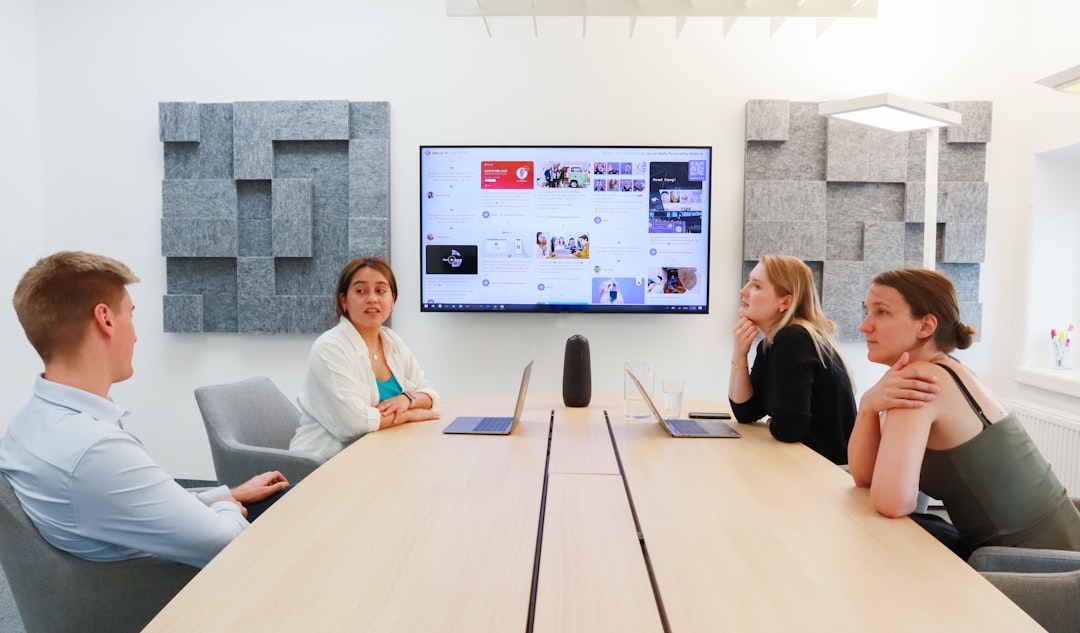
A meeting room with a wall-mounted display and acoustic panels. Photo: Walls.io / Unsplash.
No Video, Frozen Video, or Lag
Video problems split into two different issues that get mistaken for each other: a camera that isn't sending a picture at all, and a feed that is choppy, frozen, or lagging behind the audio. They are checked differently.
No picture: check the source, the cable and the camera. If the room display shows a blank screen or "no signal," check that the display is set to the correct HDMI input, especially in rooms with several sources (a room PC, a laptop input and a wireless presentation receiver sharing one screen). If the camera sends a black image, check whether the model you have has a privacy shutter or cover and whether it is closed, and whether another application is already using the camera. Zoom's troubleshooting guide for video that crashes or freezes lists closing other programs that use the camera, restarting the computer, reinstalling the latest version of the app, updating camera drivers from the manufacturer's support pages, and checking operating-system privacy settings that can block the app from using the camera.
Frozen or lagging video: check the network and the device. Zoom groups the causes of crashing or freezing video under device settings, competing applications and quality issues, so check more than one thing:
- Network: is the room PC or codec on Wi-Fi rather than a wired connection, and is other heavy traffic running on the same network during the call? Trying a wired ethernet connection, or lowering the call's video resolution where the platform allows it, can show whether bandwidth is involved.
- Device and drivers: are camera drivers and the call app up to date? Does the camera work in another app?
- Connection to the camera: for a USB camera, reseat the cable and try another port.
- Computer load: close applications that are competing for the camera or the processor, then restart if needed.
For a sense of scale, Zoom publishes its own bandwidth recommendations: for group video calling, 2.6 Mbps up and 1.8 Mbps down for 720p HD video, and 3.8 Mbps up and 3.0 Mbps down for 1080p HD video; for 1:1 calls, 1.2 Mbps up and down at 720p. Other platforms publish their own figures, so check the requirements for the platform your room uses.
If lag appears at the same time of day, ask your IT team to compare network utilization during that window before replacing equipment; it is a quick way to see whether congestion lines up with the problem.
Echo, Feedback, and Audio Loops
Echo is disruptive because it affects everyone on the call, not just the room with the problem. Zoom's guidance on audio echo describes three situations to check:
- More than one device in the room has active call audio. Zoom lists "multiple computers with active audio are in the same conference room" as a cause of echo. If someone in the room also joins on their laptop, their laptop's mic and speaker can form a loop with the room system. Zoom's fix is to disconnect audio on the additional devices, and it notes that "muting is not enough as you mute the mic, but the speaker is still on." The aim is one active audio path per room; a laptop can stay in the meeting to share content as long as its audio is disconnected.
- Speakers too close together, or one person on two audio connections. Zoom also lists participants whose computer or phone speakers are too close to each other, and a participant with both computer and telephone audio active.
- Echo cancellation off or not working. Many room systems use acoustic echo cancellation (AEC). Zoom's Zoom Rooms audio guidelines say that when AEC is working properly "you will not hear your own voice back in the call," that "the endpoint that does not hear the echo is where the issue exists," and point to the echo cancellation setting and a built-in Audio Echo Test. Where AEC runs depends on your equipment, so check the settings for your specific microphone, soundbar or room system.
Microphone placement matters too: a microphone right next to a speaker is more likely to pick up the room's own output, so check your equipment maker's placement guidance. A quick diagnostic: disconnect audio on every extra device in the room and see whether the echo stops. If it persists with only the room system's audio connected, look at placement and echo cancellation settings next, remembering Zoom's point that the problem sits at the endpoint that does not hear the echo.
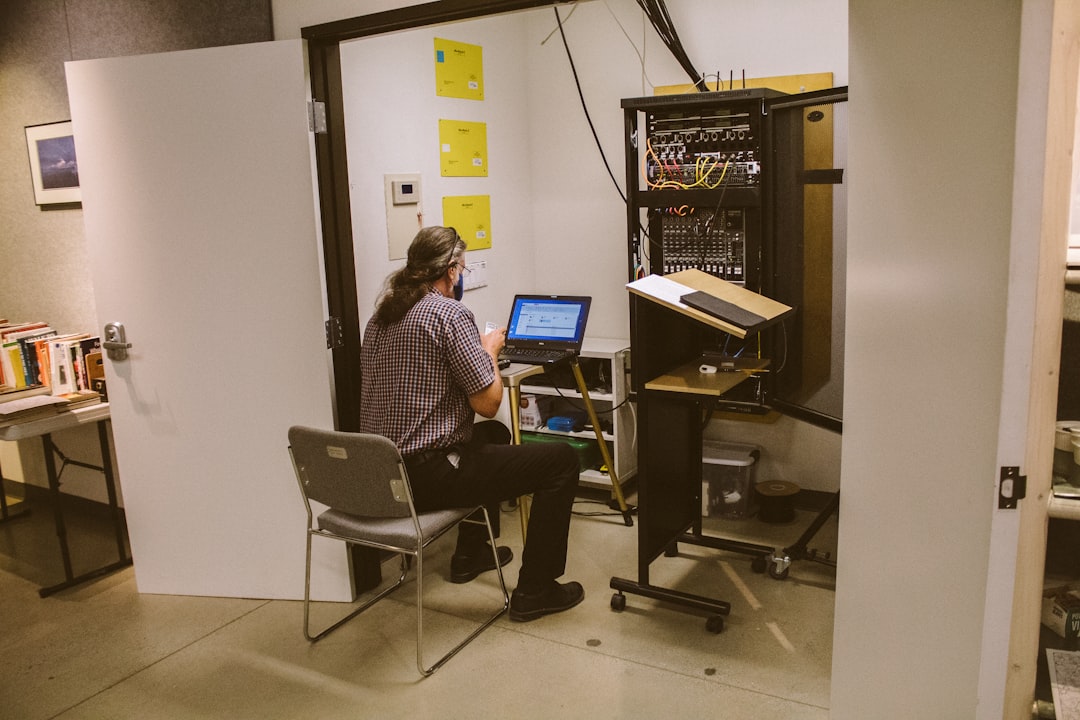
An equipment rack with cabled audio gear beside a laptop workstation. Photo: Brian Wangenheim / Unsplash.
Connection Drops and Meetings That Won't Start
When a call drops mid-meeting, or a Zoom Rooms or Teams Rooms console won't launch the meeting at all, candidate causes include the network, the room account's sign-in or calendar connection, software or firmware versions, and the hardware itself. Check them one at a time:
- Calendar and sign-in: if the console shows "no upcoming meetings" while the meeting is clearly on someone's calendar, check that the room's calendar account is still connected and signed in. Changes to calendar systems or sign-in settings are worth ruling out.
- Network: if drops repeat in the same room, check whether the room's codec or console is on Wi-Fi or a wired connection, and whether the drops coincide with busy periods on the network.
- Updates: room-system makers publish firmware and software updates, and release notes can list stability and connectivity fixes. Check whether the room is running the current supported version.
- Hardware: if the other checks come back clean, the device itself may need inspection or a support case with its maker.
If your organization doesn't have a routine for checking conference room updates, it is worth setting one up alongside your regular AV maintenance.
When to Stop Troubleshooting and Call for Support
The checks above are things anyone in the room can try. Some patterns mean the room needs a proper inspection rather than another attempt:
- The same failure keeps happening in the same room, regardless of who runs the meeting.
- A problem persists after checking device selection, cables, mute status, and the network connection.
- The equipment keeps failing and its maker no longer provides updates or support for the model, so a repair or replacement decision is due.
- A big meeting (board presentation, all-hands, client pitch) is coming up and the room hasn't been reliable recently. It's worth a pre-check rather than hoping it holds together.
For high-stakes meetings, some companies bring in short-term rental gear as backup; VENEGEEST's Wireless Screen Caster ($60/day) and LED TV Displays (43″ to 120″, $35–$120/day) can cover presentation duties while the permanent room system gets serviced, so one flaky HDMI port doesn't sink a client pitch. If your team keeps troubleshooting the same conference room, it may be more cost-effective to have it professionally assessed and, if needed, temporarily supplemented with rental AV equipment than to keep losing meeting time to the same failure.
FAQ: Conference Room Video Call Problems
Why does our conference room camera keep freezing during calls?
Check several things rather than assuming one cause. Zoom groups the causes of freezing video under device settings, competing applications and quality issues. Look at the network (Wi-Fi versus wired, other heavy traffic during the freeze), the camera's drivers and the call app's version, the USB cable and port for a USB camera, and other programs using the camera or the processor. Trying a wired connection is one useful test of whether the network is involved.
Why can people in the room hear remote participants but remote participants can't hear us?
That points to the room's microphone side, not the speakers. Check that the correct mic is selected as the input device in the call software, confirm the mic isn't muted at the hardware level (separate from the software mute), and reseat the cable connecting the mic to the room's AV equipment.
Related: see our guide to choosing the right microphone type for different room sizes and use cases.
How do we stop the echo when someone joins on their laptop too?
Have that person disconnect audio on their laptop so the room system is the only active audio path in the room. Zoom lists multiple computers with active audio in the same room as a cause of echo, and notes that muting alone is not enough because the speaker stays on. If the echo continues after the extra audio is disconnected, check microphone placement and echo cancellation settings.
Should we reset the whole room system when a call fails?
Start with the specific check for the symptom (device selection, cable check, network connection). If that doesn't help, a normal restart of the room PC or console is a reasonable next step. A factory reset is different: it can erase the room's configuration, such as its account sign-in and device settings, so leave that to whoever manages the room and follow the maker's instructions.
How often should conference room AV firmware be updated?
Follow the schedule your room-system maker recommends, and set up a regular check so the room stays on a currently supported version. Makers publish updates that can include stability and connectivity fixes, so read the release notes before updating ahead of an important meeting.