
Wireless Presentation Systems: Which One Fits Your Event?
Comparing wireless screen casters, HDMI dongles, and full AV wireless setups for meetings, conferences, and corporate events.
What a Wireless Presentation System Does
A wireless presentation system lets a presenter send a laptop, tablet or phone screen to a display or projector without running a video cable from the presenter's device. The receiver still needs power and is usually cabled to the display, so "wireless" describes the link from the presenter to the receiver, not the whole setup. For corporate meetings, trade show booths and conference breakout rooms, the appeal is that presenters don't have to find the right adapter before they start.
But "wireless presentation system" isn't one product. The three groupings below are this guide's own shorthand, not an industry standard: a small plug-in wireless HDMI or USB-C transmitter, a dedicated casting box, and a wireless link built into a larger event AV setup with a switcher and moderator control. A startup demo day needs different gear than a single conference room retrofit, and a 300-person product launch needs something else again.
This guide breaks down the real options, what each one actually costs to rent or buy, and which fits which event type. If you're planning a corporate event and want the full AV picture beyond just the screen, our corporate meeting AV setup guide covers layout and backup planning.
Wireless presentation gear should be planned with the rest of the room, not as a standalone afterthought, because it rarely operates alone. It has to talk to a display, a sound system, and often a recording setup. Getting the wireless piece right means understanding how it fits the rest of the room.
Three Common Options, Compared
Here's how the main options stack up against each other:
- HDMI/USB-C wireless transmitters: Small plug-in transmitters that pair with a receiver at the display. How many presenters they support, how they connect and how quickly they switch depend on the model: some simple kits pair one transmitter with one receiver, while others support many. BenQ, for example, lists a maximum of 16 connections for its InstaShow WDC15 and says it needs "no app, network, or software setup." Check the spec sheet of the exact model you'd use.
- Dedicated casting boxes: Room systems of this kind connect permanently to a room's display and let multiple people take turns presenting. Check the maker's spec sheet for how many simultaneous connections a model supports, whether Mac and Windows laptops can join without a software install, and its stated latency. These are typically installed in a conference room or huddle space.
- Full AV-integrated wireless setups (rental): For conferences, trade show booths, and multi-room corporate events, wireless presentation gets built into the broader AV rig, tied to the main screen or LED wall, routed through a switcher, often with a wired input kept ready as a backup. How a backup is switched in, manually or automatically, depends on the gear, so test the switch-over during rehearsal.
One thing to check: a setup that worked in your office may behave differently in a venue, where the radio environment and network are different. Test the exact model in the actual room before the event, and choose the setup by the number of presenters, the switching you need and what a rehearsal shows, not by a headcount rule.
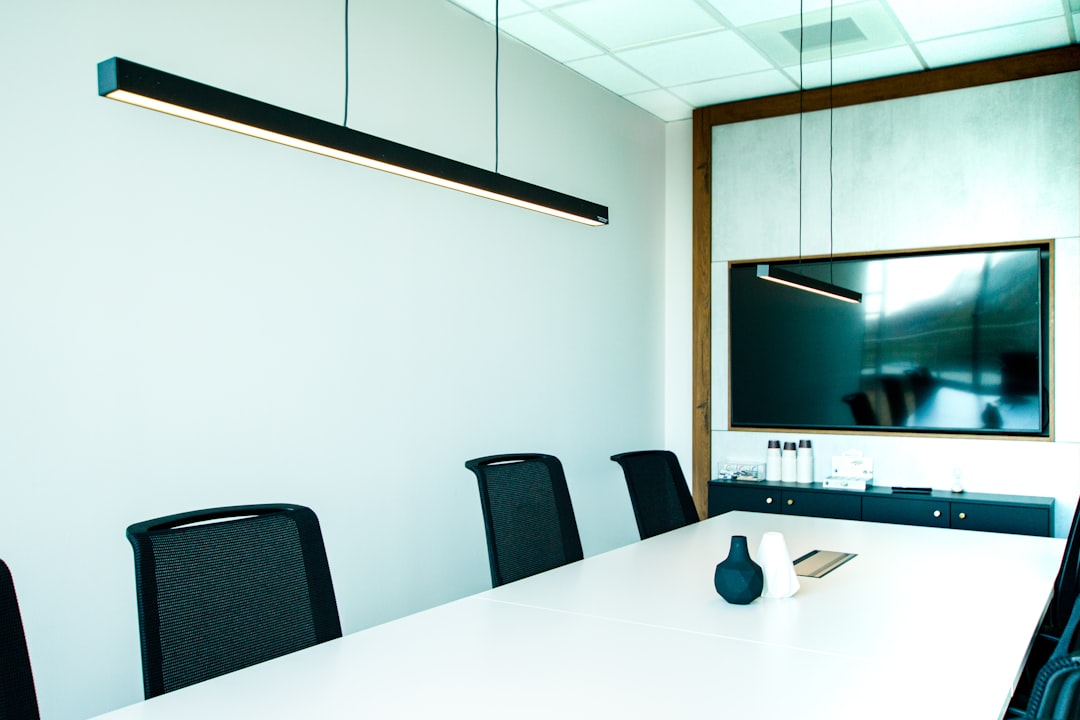
A meeting room with a wall-mounted display, the kind of room a casting box is often added to (illustrative). Photo: Craig Lovelidge / Unsplash.
Matching the System to Your Event Type
The right setup depends on the event format, not just headcount. These are starting points to discuss, not rules:
- Internal team meetings (5-15 people): A dedicated casting box in the room may be enough. If the room is used every week, compare the full cost of owning a box, including installation and configuration, with repeated rental costs.
- Client pitches and boardroom presentations: A casting box or a larger event setup, depending on whether recording or a backup input is needed.
- Conferences and multi-track events: Multiple presenters hand off between sessions, and moderators may need control over which laptop feeds which screen. A switcher with a wired HDMI input kept ready as a backup reduces the risk of a dropped wireless link stopping a session; rehearse the hand-offs and the switch to the backup.
- Trade show booths: Pay extra attention to the radio environment, since many exhibitors' devices operate in the same hall. Test the exact model on site if you can, and keep a wired input as a fallback. If you're prepping for a booth, our trade show and convention booth AV checklist covers signage and lighting alongside the connectivity piece.
- Hybrid and livestreamed events: Consider feeding the stream encoder separately from the in-room wireless display, so a problem with the in-room wireless link doesn't necessarily also affect the stream for remote viewers.
One detail people underestimate: BYOD (bring your own device) compatibility. If your event has external speakers or guest presenters, confirm the exact model works with their devices (Mac, Windows, phones) and whether it needs an app, driver or button plugged in. If it needs an install, have guest presenters do it before their session rather than at the lectern.
Rent or Buy: What Actually Makes Sense
For a permanent office conference room, compare the full cost of buying a casting box (hardware plus installation, configuration and any ongoing costs) with what you'd spend renting for each meeting. For one-off corporate events, conferences or trade show appearances, renting lets you add a technician and a wired backup input for the day, without owning gear you won't use again.
Our Wireless Screen Caster is listed at $60 for a 24-hour rental period; delivery, setup and technician support are scoped and quoted to your event.
Our full AV equipment rental catalog lists current wireless and display options alongside LED screens and sound systems, so you can bundle everything into one delivery instead of juggling separate vendors for the screen, the sound, and the wireless piece. If you already have a general sense of what a corporate event AV setup costs across categories, our AV rental cost guide for the Bay Area walks through how catalog day rates, delivery and setup add up.
FAQ: Wireless Presentation Systems
What's the difference between a wireless HDMI dongle and a casting box?
A wireless HDMI or USB-C transmitter plugs into the presenter's device and sends its screen to a receiver at the display; a casting box sits at the display and presenters connect to it, sometimes through an app or built-in screen mirroring. Both come in models that support one presenter or many, so the number of connections, switching and latency depend on the model you choose, not on the category.
Can wireless presentation systems handle both Mac and Windows laptops?
It depends on the model: some work without an app, while others need an app, driver or plug-in button. Check the exact model's compatibility list, and test with guest presenters' devices before the event.
Is Wi-Fi at a convention center reliable enough for wireless presentations?
Not always. Some wireless presentation systems connect over their own wireless link rather than the venue's network, but that link still shares the airwaves with other devices in the hall. No setup can rule out interference. Testing the exact model on site and keeping a wired HDMI input ready as a backup reduces the risk.
How much does it cost to rent a wireless presentation system for an event?
Our Wireless Screen Caster is listed at $60 for a 24-hour rental period; delivery, setup and technician support are scoped and quoted to your event.
Should I buy or rent wireless presentation equipment?
For a permanent office conference room used weekly, compare the full cost of owning (purchase plus installation, configuration and any ongoing costs) with repeated rental costs. For one-off events, conferences and trade shows, renting lets you add a technician and a wired backup for the day without owning the gear.

A small-group presentation on a wall screen (illustrative). Photo: Flipsnack / Unsplash.
Wireless Presentation System Pricing at a Glance
"How much does it cost to install a wireless presentation system" depends on which option your event needs. Here's the same three-option breakdown from above, laid out as a quick reference table so you can budget before you call anyone.
| Option | How it's paid for | Typical use |
|---|---|---|
| HDMI/USB-C wireless dongle | Purchase, plus any setup and ongoing costs the model involves | Small meetings |
| Dedicated casting box | Purchase, plus installation, configuration and any ongoing costs, which depend on the model and site | Permanent conference room used every week |
| Full AV-integrated wireless setup (rental) | Rental: Wireless Screen Caster $60 per 24-hour rental period, plus quoted delivery, setup and technician time | Conferences, trade shows, hybrid events; setup and technician time confirmed in the quote |
Two cost details are worth separating. First, a permanent casting box means buying the hardware plus whatever installation, configuration and ongoing costs (such as support or licences) the model and the room involve; those depend on the product and the site, so compare that complete scope with rental costs, which are priced per rental period rather than per install. Second, a bare wireless unit and a staffed setup are not the same purchase: at VENEGEEST the equipment has a listed day rate, while technician, delivery and setup time are scoped and quoted to the event, so compare like with like. Our wireless screen caster rental page shows the unit itself.
For a one-off corporate event, the total moves with how many input sources and displays the event needs covered, which displays you add from our rental catalog (LED TV displays are listed from $35 to $120 by size), and how much technician time the run of show needs.