
Speaker AV Coordination Checklist for Corporate Events
Send this tech requirements form two weeks before your event to catch laptop, microphone and video playback problems before the day.
Why Speaker AV Coordination Fails (and How to Fix It)
One of the most visible ways a corporate event stumbles isn't the venue or the catering. It's a speaker who can't connect their laptop to the screen. You've seen it: a keynote speaker fumbling with adapters for 10 minutes while 200 attendees scroll their phones. The problem isn't the speaker's fault. It's that nobody collected their tech requirements ahead of time.
It is easy to send speakers a "what time will you arrive?" email and assume the rest will work itself out. Speakers use different operating systems (Mac, Windows, Linux), different ports (HDMI, USB-C, Mini DisplayPort, even VGA), different presentation software (PowerPoint, Keynote, Google Slides, PDF), and different microphone preferences (handheld, lapel, podium-mounted). If you don't ask these questions well before the event, you risk finding the mismatches on the day, when there is little time to fix them.
This checklist covers the exact tech questions to ask every speaker before your Bay Area corporate event, conference, or panel discussion. Asking the right questions early gives you time to fix problems before anyone shows up.
The Speaker Tech Requirements Form (Send 2 Weeks Before)
Two weeks before your event, send every speaker a tech requirements form. Don't make it optional — make it a required Google Form or Typeform submission. Here's exactly what to ask:
Operating System & File Format
- What computer will you present from? Mac, Windows, Linux, or using our house laptop?
- What presentation software? PowerPoint, Keynote, Google Slides, PDF, video file?
- Do you need internet access during your talk? Yes or no (if yes, test wifi strength at the podium beforehand).
- Will you bring your own laptop or use ours? If they're bringing their own, you need to know the next question.
Connection Ports & Adapters
- What video output port does your laptop have? HDMI, USB-C, Mini DisplayPort, Thunderbolt 3, VGA (yes, some speakers still use VGA).
- Do you have your own adapter? Have backups anyway, in case it is forgotten or does not work.
- Do you need a confidence monitor? A second screen facing the speaker showing presenter notes and the next slide. Conference speakers often expect one, and it is easy to forget in the plan. One option is a 43″ LED TV Display ($35 per day) on a TV Floor Stand ($20); choose the size for the distance between the speaker and the screen.
If a speaker is using Mac with Keynote and your AV setup expects Windows with PowerPoint, you need to know this two weeks out — not 10 minutes before they present. Exporting Keynote to PowerPoint can break animations, fonts and embedded video, so test the exported file.

Illustration of a speaker at a podium with a laptop and a presentation screen.
Microphone Preferences
Ask every speaker what microphone type they prefer. If you assume "we'll just give them a lapel mic", you may discover shortly before showtime that the speaker does not want to wear one. Some speakers dislike the feeling of a lapel mic clip on their shirt. Some move around too much and the cable gets tangled. Some just prefer handheld because it feels more natural.
Here's what to ask:
- Do you prefer a handheld, lapel (lavalier), or podium-mounted microphone? Get a specific answer.
- Will you stay at the podium or move around the stage? If they're moving, they need a wireless mic (handheld, lapel or headset). If they're staying put, a podium-mounted mic is an option.
- Have you used wireless mics before? Some speakers don't know how to turn them on, mute themselves, or position the pack. Plan a 2-minute tech check before they present.
Once you have the answers, confirm your AV supplier can cover every mic type on the list, and get it in writing in the quote. At VENEGEEST, the Bluetooth Speaker System ($60 per day) comes with a controller, six speakers and two mics, which may suit a small meeting or panel. Standalone handheld, lavalier and headset systems go beyond the listed catalog; they are available on request, subject to availability — contact us for a quote, or confirm what your venue provides. If a speaker insists on their own headset mic, ask them to bring it and test it during soundcheck, since consumer headset mics can sound thin through a PA system. Our guide to wireless mic systems covers handheld, lapel and headset trade-offs in more detail.
Video, Audio, and Embedded Media Headaches
If a speaker's presentation includes embedded video or audio clips, test them separately. A video that plays fine on the speaker's laptop at home can stutter, lose its sound or fail to play on another machine or display. Some common causes:
Codec mismatches: The speaker's laptop has the right codec installed (H.264, H.265, VP9), but the house laptop you're using as a backup doesn't. The file won't play. Ask speakers which format their videos are in, and play them on the machine that will actually run the show; if one won't play, have the speaker re-export it in a format that does.
Audio routing confusion: The speaker's presentation has a video with sound, but the sound is routed to their laptop's internal speakers instead of the PA system. This happens when the laptop's audio output isn't set to HDMI or the external sound interface. Test this during soundcheck by playing the video all the way through, not just the first 3 seconds.
Large files: A very large embedded video can make a deck slow to open or to advance on some computers, depending on the hardware, the file and the software. Test the actual deck on the playback computer, and if a slide hesitates, ask the speaker for a smaller version of the video. Keep media stored locally on the playback computer, with a copy on a USB drive as an offline backup; only rely on an online link if the network has been tested in the room and someone has confirmed the link works without a login.
The fix: Ask speakers to send their presentation file 48 hours before the event. Open it on the actual AV system you'll be using, play every video and audio clip, and confirm it works. If it doesn't, you have time to fix it. If you wait until day-of, you don't.
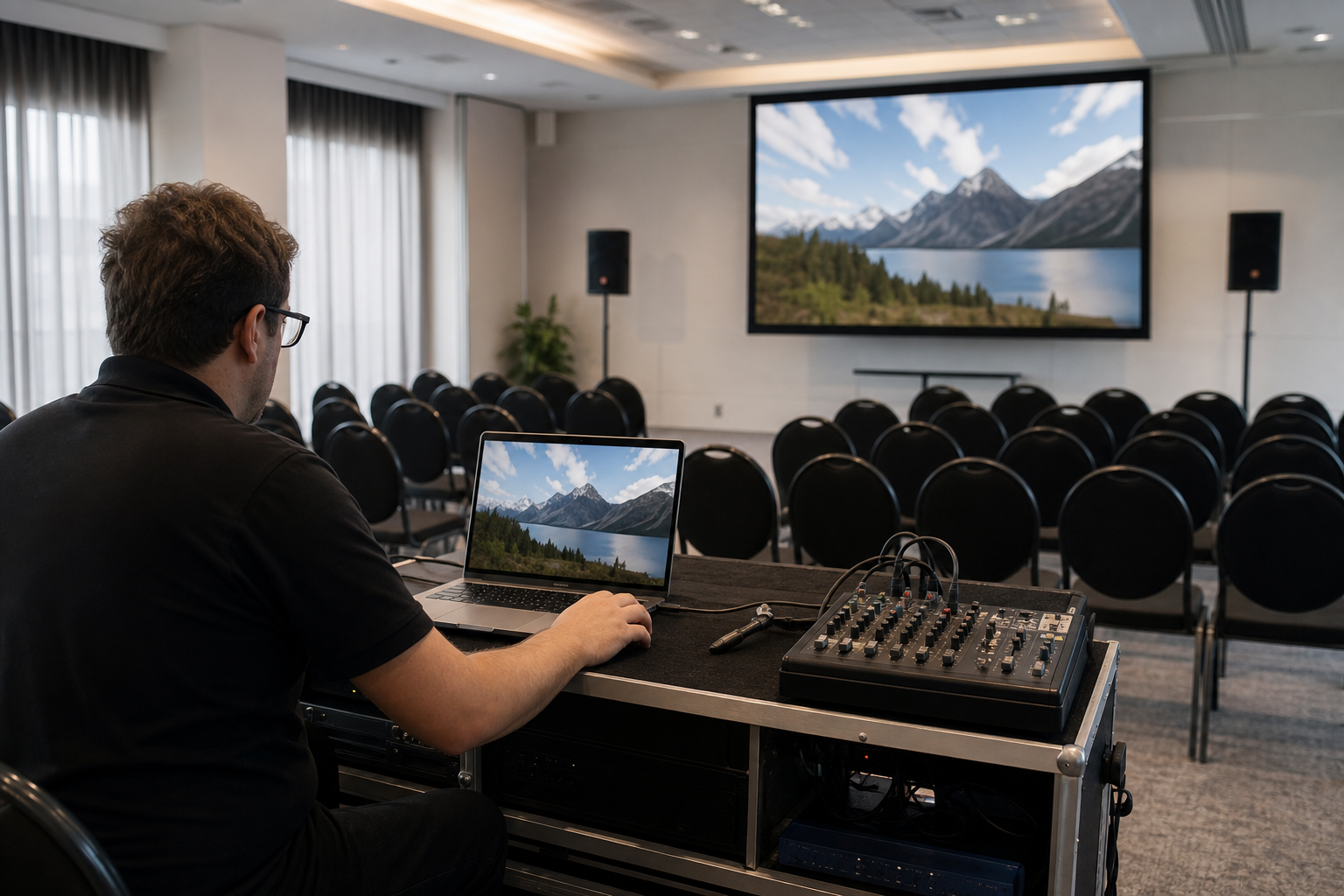
Testing video playback, audio routing and laptop connections ahead of time reduces the risk of problems on the day.
Day-Of Speaker Check-In Timeline
Even with good pre-event coordination, you need a day-of speaker check-in process. Here's an example timeline to adapt for corporate events with multiple speakers; the durations are planning allowances, not measured times:
60 minutes before doors open: First speaker arrives for soundcheck. Test laptop connection, mic preference, video playback, and confidence monitor positioning. Allow around 10-15 minutes per speaker, and more if you have not collected their tech requirements in advance.
30 minutes before doors open: Second and third speakers arrive for quick tech checks. Allow around 5 minutes each, since the AV system has already been checked with the first speaker. You're just verifying their specific laptop/adapter combo and mic placement.
10 minutes before doors open: Final walk-through with the first speaker. Confirm they know how to advance slides (clicker vs. keyboard), where to stand so they don't block the screen, and how to signal the AV tech if something goes wrong mid-presentation.
Between sessions: If you have multiple speakers throughout the day, schedule 10-minute speaker swap windows. Speaker A finishes, steps off stage, Speaker B connects their laptop during the transition. This works best if Speaker B was tech-checked earlier in the day; otherwise any troubleshooting happens while the audience waits.
A frequent oversight: assuming speakers will arrive early for soundcheck without explicitly telling them to. Put it in the speaker brief email, put it in the calendar invite, and send a reminder text the morning of the event. "Soundcheck at 8am, doors open at 9am, your session starts at 9:30am." Without it, a speaker may show up at 9:25am expecting to go on at 9:30am, leaving no time to check anything.
Backup Plans for When Things Still Go Wrong
Even with good planning, equipment can fail. Here's what to have ready:
- House laptop with a clean install of PowerPoint and Keynote. Load every speaker's presentation onto this backup laptop 24 hours before the event. If a speaker's laptop fails, you can switch to the house machine.
- Adapter kit covering every port type: HDMI, USB-C, Mini DisplayPort, VGA, Thunderbolt 2, DVI. Keep this kit at the AV control station, not in a bag backstage. An older laptop may only have VGA output, so a VGA-to-HDMI adapter is worth having in the kit.
- Extra wireless mic batteries and a backup mic. Swap in fresh batteries between sessions. For the spare, either use a separately coordinated wireless system on its own frequency or a wired mic. If the spare transmitter shares the original's frequency and receiver, the failed transmitter must be switched off (not just muted) before the spare is switched on, or the two will interfere; practise the changeover at soundcheck.
- Tech person stationed at the AV control desk for the entire event. Not walking around, not setting up the next room, not on a lunch break. Someone needs to be watching the signal, the audio levels, and the speaker. If something goes wrong, you want someone already at the desk, not someone you have to track down via walkie-talkie.
The backup laptop matters most when a speaker's own machine won't cooperate: an older laptop that won't output the display resolution, or a Windows update that hangs during boot. Instead of canceling the session or making the speaker wing it with no slides, switch to the house laptop where the deck is already loaded. A Wireless Screen Caster ($60 per day) is another way to shorten the swap, since it casts from a laptop without a cable change at the lectern; test it with each speaker's machine at soundcheck.
Common Speaker Requests (and How to Handle Them)
The same special requests come up again and again. Here's how to handle them:
"I need to play a video from YouTube during my talk." Avoid depending on venue wifi to stream video live. Where the video's terms allow, ask the speaker for a local copy to play from the presentation computer, and test it. If it can only be played online, test the network and the link in the room beforehand and have a fallback plan (such as skipping the clip) if the connection drops.
"Can I use my own wireless clicker to advance slides?" Yes, but test it beforehand. Some clickers use Bluetooth, some use 2.4GHz RF dongles, and range varies from model to model, so a clicker that works at the lectern may fail from the far side of the stage. If they insist on using their own clicker, do a full walk-through at the actual distance they'll be presenting from.
"I want to walk into the audience during my talk." This needs a suitable wireless mic (handheld, lapel or headset, chosen for the presenter) whose coverage has been tested across the room, plus a plan for how they'll see their slides, since a confidence monitor at the stage won't help if they're far out in the audience. Speakers who ask for this may not have thought through the logistics. Walk through it with them during soundcheck and have a backup plan where they stay near the stage if the wireless range isn't sufficient.
"Can I connect my phone to the screen to show a demo?" Possible, but plan it. Which casting or mirroring methods work depends on the exact phone and the receiver, and some need a network; ask for the phone model, confirm it works with the receiver you will use, and check how much delay there is. If it's critical to the presentation, test it during soundcheck and have the speaker record a screencast video of the phone demo as a backup. Play the video instead of trying to mirror live if the connection is unreliable.
What to Include in Your Speaker Pre-Event Email
Here's a checklist to send speakers two weeks before the event. Copy it, customize it for your event, and make it a required response form:
- Operating system (Mac, Windows, Linux)
- Presentation software (PowerPoint, Keynote, Google Slides, PDF, video file)
- Video output port on your laptop (HDMI, USB-C, Mini DisplayPort, VGA, Thunderbolt)
- Do you have your own adapter? (Yes/No — we'll provide backups either way)
- Microphone preference (handheld, lapel, podium-mounted)
- Will you move around the stage or stay at the podium?
- Do you need a confidence monitor? (Yes/No)
- Does your presentation include embedded video or audio? (Yes/No — if yes, send your file 48 hours early for testing)
- Do you need internet access during your talk? (Yes/No)
- Will you use a wireless clicker, or do you need us to provide one? (If using your own, bring it to soundcheck)
- Arrival time for soundcheck (we recommend 60 minutes before your session)
Send this form via Google Forms or Typeform so responses are collected in a spreadsheet. Share the spreadsheet with your AV tech so they know what to prep. Asking the right questions early reduces the risk of day-of speaker AV problems.
FAQ: Speaker AV Coordination
How early should speakers arrive for soundcheck?
60 minutes before their session starts, or 60 minutes before doors open if they're the first speaker of the day. This gives you 10-15 minutes to test their laptop connection, microphone preference, video playback, and confidence monitor. If a speaker shows up 10 minutes before their session, there is little time to fix anything before they go on.
What speaker AV problems should I plan for?
Common ones include laptop-to-screen connection issues (an adapter that doesn't work or was left behind) and embedded videos that won't play or play without sound because of format or audio routing problems. Both are easier to catch early: ask speakers for their laptop specs two weeks early, and ask them to send their presentation file 48 hours before the event so you can test video playback on the actual AV system you'll be using.
Should I provide a house laptop as a backup?
It is a good idea. Have a house laptop with PowerPoint and Keynote installed, and load every speaker's presentation onto it 24 hours before the event. If a speaker's laptop fails, you can switch to the house machine quickly instead of canceling the session or making the speaker talk without slides.
Do I need to provide adapters, or should speakers bring their own?
Provide adapters; a speaker may forget theirs. Keep an adapter kit at the AV control station with HDMI, USB-C, Mini DisplayPort, VGA, and Thunderbolt 2 adapters. It is a small cost compared with a speaker who can't connect shortly before they present.
What if a speaker insists on using their own microphone?
Let them, but test it during soundcheck. Some speakers prefer their own headset mic because they're used to it. The problem is that consumer-grade headset mics can sound thin or distorted through a PA system. Test it during soundcheck, and if it sounds bad, diplomatically suggest they use one of your wireless lavs or handhelds. Let them listen to both through the system so they can hear the difference and decide.
How do I prevent speakers from running over their allotted time?
This isn't strictly an AV question, but it affects event flow. Give speakers a visual time cue: a tablet or printed sign at the back of the room showing "10 minutes remaining," "5 minutes remaining," "Time's up." Speakers can miss the cue, so build buffer windows between sessions. If Speaker A runs 8 minutes over and you have no buffer, Speaker B starts late, and the entire day cascades into delays. AV-wise, you can also program a subtle lighting cue (back lights dim slightly) or have the AV tech send a wireless signal to the speaker's confidence monitor showing a countdown timer.