NDI Camera Streaming for Hybrid Events: Bay Area Guide
NDI vs HDMI, network planning and illustrative camera layouts for hybrid meetings, plus the in-room screens and sound VENEGEEST rents.
NDI vs HDMI: Which Protocol Makes Sense for Your Hybrid Event
NDI (Network Device Interface) carries video over an Ethernet network instead of a dedicated HDMI cable for each camera. Every camera connects to a network switch, and the streaming computer receives all of the feeds over its own network connection. That is the main practical difference: with HDMI, each camera needs its own cable run to a capture input; with NDI, each camera needs a network connection, and the cabling problem becomes a network-planning problem.
The trade-off is compatibility, and it runs in both directions. An HDMI camera needs a compatible capture input on the computer side. Laptop HDMI ports are generally outputs, not inputs; Dell's support documentation, for example, says its laptops and desktops have "HDMI Out" only and lists video capture devices among the things that have HDMI In (Dell). So an HDMI camera also needs a capture card or USB capture device that supports the camera's output resolution and frame rate; check both before the event. NDI cameras, in turn, need NDI-compatible software on the receiving end, such as vMix, OBS Studio with an NDI plugin, or the NDI Tools utilities that present an NDI source to Zoom or Teams as a camera.
Which one is simpler depends on the crew and the venue. If the person operating the cameras has worked with network video before, NDI can reduce the number of long cable runs. If the crew is used to HDMI or SDI and the venue has no suitable network, direct cabling may be the easier path. Neither is automatically more reliable; what matters is that the setup is tested on the actual equipment before doors open.
Latency is the other consideration. NDI encodes video and sends it across a network, and NDI describes the protocol as "designed to have very low latency" (NDI documentation). Any added delay matters most when someone in the room is watching the processed picture live, such as a presenter using a confidence monitor or an interpreter watching the speaker. For a keynote that remote attendees simply watch, a small delay is rarely the deciding factor. If live monitoring matters for your event, test the delay on the actual setup rather than assuming either protocol will be fine.
Network Requirements and Bandwidth Planning
Full-bandwidth NDI uses a lot of network capacity. NDI's own documentation says "a typical NDI stream consisting of 1080 60P video yields a data rate up to 150 Mbps per stream" (NDI documentation), so three such cameras can add up to around 450 Mbps. If the same network is also carrying attendee Wi-Fi and other venue traffic, a shared link can run short of capacity, and the result is dropped or frozen video.
Two separate questions need answers here, and it helps not to mix them up:
- Capacity. Does every link the camera traffic crosses have enough throughput? NDI recommends that each port be full duplex with upstream and downstream speeds of "at least 1 Gigabit per second," and warns that "many switches manufactured at the time of writing may share bandwidth across the backplane of multiple ports" (NDI network layout). A VLAN separates traffic logically, but it does not add capacity to a shared physical link, so a VLAN on an already busy uplink does not solve a bandwidth shortage by itself.
- Isolation. Is the camera traffic kept apart from the venue's other traffic? This is a configuration decision for whoever manages the network: either the venue's IT team sets up segmentation on its switches, or the streaming vendor runs a separate camera network that is not bridged into the venue LAN, with the streaming computer reaching the internet through a different network connection. Simply plugging your own switch into a venue port does not by itself isolate anything.
The internet connection needs far less: Zoom's published requirement for 1080p group video is 3.8 Mbps upload (Zoom). So the practical plan is to ask the venue early about switch speeds, whether its switches are managed, and whether its IT team can provide a segmented network, then agree a written topology with your streaming vendor: which switch the cameras use, what speed each port and uplink runs at, and how the streaming computer gets to the internet. NDI also suggests using switches from the same manufacturer, ideally the same model, within a subnet.
Wired connections are the safer assumption for cameras at a busy event, because venue Wi-Fi is shared with attendees and its performance is outside your control. Budget one network cable per camera position, or ask the venue whether it provides tested network drops at the positions you need and what it charges for them.
Power-over-Ethernet (PoE) can simplify cabling further: a camera that supports PoE can draw power and data over one network cable from a PoE switch or injector, so it does not need a separate outlet at the camera position. Check the camera's PoE class against what the switch or injector supplies before relying on it.
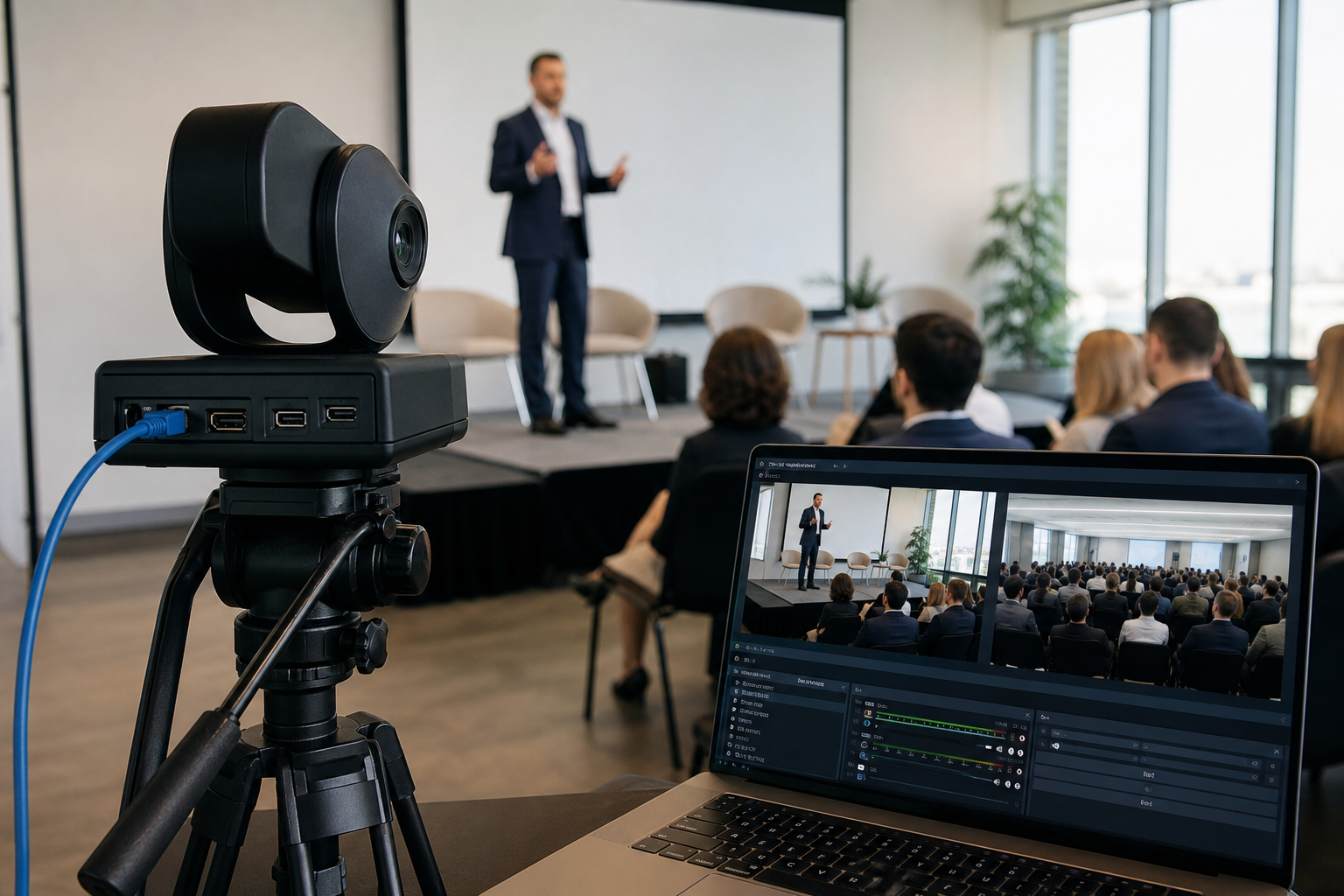
Illustrative image: a camera on a tripod and a laptop showing camera previews at a presentation.
Illustrative Camera Layouts for Hybrid Meetings
The layouts below are illustrative starting points, not standards. Whether a given camera covers a room depends on its lens and field of view, where it is mounted and how the room is set, not on its zoom ratio alone. Ask the streaming vendor for the camera's field-of-view specification, sketch the positions on the floor plan, and test the framing in the room before the event.
- Smaller meeting, one camera. A single PTZ (pan-tilt-zoom) camera at the back or a rear corner, framed on the presenter and the front of the room, with presets for a panel table or an audience question position. The kit is the camera, its mount, a network cable, a PoE injector or PoE switch if the camera uses PoE, and a computer running the streaming software.
- Mid-size room, two cameras. One camera holding a wide shot of the stage for context and one closer camera on the presenter. The closer camera can be locked on the lectern if the speaker stays put, or operated remotely to follow a presenter who moves.
- Larger all-hands, three cameras. Wide, presenter and an audience-facing camera for questions. Live switching between them needs an operator; without one, the cameras can be held on preset frames.
If the venue already owns HDMI PTZ cameras, an HDMI-to-NDI encoder can convert their output into an NDI stream, which may be worth it when those cameras are already mounted where you need them. Confirm the encoder supports the camera's output format.
Zoom and Microsoft Teams Integration
A common way to bring an NDI camera into Zoom or Teams is a software bridge that makes it appear as a camera. NDI Tools includes Webcam Input for Windows and Virtual Input for macOS, which present a selected NDI source as a camera the meeting software can pick (NDI Tools). You can switch sources there, or use vMix or OBS Studio to mix the cameras into a single program feed (for example a wide shot with a presenter picture-in-picture) and send that into the meeting as a virtual camera. vMix is paid software; its price list shows lifetime editions from $60 to $1,200, or a $50/month subscription (vMix). For large Teams town halls, check Microsoft's current documentation for which production inputs your licence supports before you plan the workflow.
Audio usually takes the most coordination. If the event uses the venue's sound system (lapel mics, a podium mic, audience mics), the stream needs a feed from that mixer. A camera's built-in microphone is usually much farther from the presenter than the presenter's own mic, so a feed from the mixer is the better source. The streaming vendor should confirm with whoever runs the mixer that it has a suitable output, and bring an audio interface that accepts that output and connects to the streaming computer. Agree this before load-in rather than on the day.
For a small meeting around one table with no sound system, a USB speakerphone connected to the streaming computer can handle both room audio and the audio sent to remote attendees. Pickup range is model-specific: Jabra's technical specification for the Speak 750, for example, lists a microphone pick-up range of "up to 2.3 m," about 7.5 feet (Jabra). Check the specification of the model you will use against where people will actually sit, and test it with someone at the far end of the table. For larger rooms or stage presentations, plan on a feed from a mixer instead.
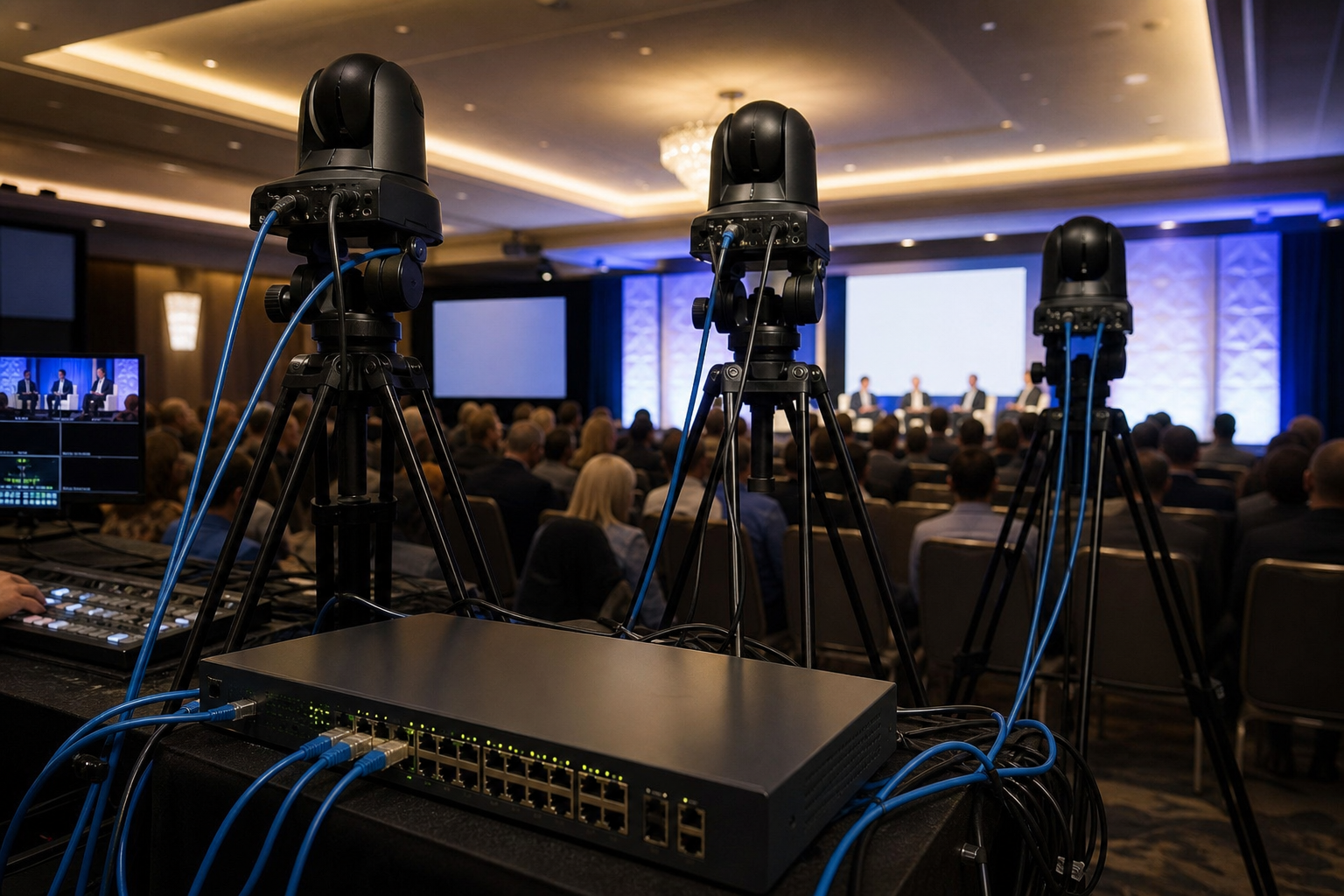
Illustrative image: several network cameras connected through a network switch.
What VENEGEEST Rents for a Hybrid Event
VENEGEEST's listed catalog covers the in-room half: the screens, sound and presentation gear the live audience sees and hears. Streaming equipment beyond the catalog — cameras, encoders, network switches or streaming computers — is available on request, subject to availability; contact us for a quote, or bring in a dedicated video or streaming vendor for the streaming side. Rates are per day (24 hours), and delivery, setup and technicians are scoped and quoted to your event.
- LED TV Display, 43″ to 120″ ($35–$120/day): confidence monitors for presenters, or a screen showing remote participants to the room. The TV Floor Stand ($20/day) is specified for 32″–85″ screens up to 132 lb; a larger display needs a support rated for it, which can be requested with the quote, subject to availability.
- Wireless Screen Caster ($60/day): presenters share slides to the room display without an HDMI cable run to the lectern.
- P1.9–3.9 LED Rental Screen ($200/day): a larger main screen option; whether it suits a bright or large room depends on the exact panels' brightness, the ambient light, the content and viewing distances, so check it in the room.
- Commercial PA Speaker ($200/day): sound for the room. If the stream needs an audio feed, the streaming vendor should confirm the mixer output and bring a compatible audio interface.
Same-week delivery is available across the Bay Area for most items. Give your streaming vendor and VENEGEEST the same run of show so the audio feed and screen positions are agreed before load-in. Call (415) 890-5555 to plan the in-room side of a recurring event or multi-day conference, or see PTZ vs USB cameras for hybrid meetings for the camera choice itself.
When NDI Isn't the Right Choice
If the site has no usable network, such as a tent, a lawn or a building without drops where you need them, running a new network just for cameras may be more work than it saves. For a single camera in that situation, a direct cable or a wireless video link from the streaming vendor may be simpler. Ask the vendor what they have tested outdoors.
If the venue's own AV team operates the cameras and works in HDMI or SDI, fit in with their workflow rather than asking them to switch protocols on the day. You can still take a program output from their system into your streaming computer through a suitable capture device.
If someone in the room must watch the processed picture live, such as an interpreter or a presenter reading a confidence monitor, test the delay on the actual equipment. If it is distracting, shorten the signal path for that monitor.
For a small meeting around one table that is simply joining a video call, a USB conference camera may be all you need. Compare its field of view with the table layout before deciding. For the room display and sound that go with it, see VENEGEEST's rental catalog.
FAQ: NDI Camera Streaming for Hybrid Events
Can I use NDI cameras with my existing venue projector and sound system?
Yes, through the streaming computer. NDI cameras send video over the network to the streaming computer rather than to a projector. To show a camera feed on the projector, send the software's program output from the computer's video output to the projector input. For audio, the stream needs a feed from the venue's mixer; confirm the available output and bring a compatible audio interface.
How much internet bandwidth do I need to stream a hybrid event reliably?
Zoom's published requirement for 1080p group video is 3.8 Mbps upload; for YouTube or LinkedIn Live, check the platform's recommended bitrate for your resolution. Leave generous headroom above those figures, test the connection at the venue ahead of time, and ask for a wired connection for the streaming computer. Remember this is separate from the local camera network, which carries far more data.
Do I need a dedicated technician, or can our internal IT team run the NDI setup?
It depends on experience. Someone comfortable with the streaming software and with the network configuration described above may run a simple single-camera setup. For multi-camera events with live switching, a dedicated operator lets the person switching cameras focus on that rather than also handling slides or chat.
Can I record the event locally and stream to Zoom simultaneously?
Yes. vMix and OBS both support recording while streaming, so the computer can save the program feed to its own drive or an external drive while sending it to the meeting. Check there is enough free storage for the full event before doors open.
What happens if the internet goes down during the event—do the cameras stop working?
NDI cameras send video over the local network to the streaming computer, so losing the venue's internet connection does not by itself stop the local camera feeds. You lose the outbound stream to remote attendees but can keep recording locally. For events where the stream is critical, ask your streaming vendor what backup internet connection and spare equipment they bring.