
How to Set Up a Sound System for a Live Event
Step-by-step sound system setup for Bay Area events—power assessment, speaker placement, mixer basics, wireless mics, and troubleshooting.
Setting up a sound system for a live event comes down to a fixed sequence: check the venue's power and room, place the speakers for the audience you actually have, connect everything with levels down, set each input's gain with a real source, then soundcheck and keep a fallback ready. The equipment changes from a boardroom to a ballroom to a park; the order does not.
Most day-of sound trouble is avoidable with preparation: a circuit nobody checked, a cable nobody labelled, a microphone nobody tested where the presenter will actually stand. For a pre-event equipment list, see our corporate event AV checklist. This guide covers the process from the venue walkthrough to running the show.
Quick Answer: Sound System Setup in 6 Steps
Work through these steps in order. The key safety habit throughout: connect sources with channel faders down and speakers off or turned down, power the speakers on last and off first, and only then bring levels up.
- Step 1 - Venue assessment: Confirm with the venue which outlets and circuits you may use and what each can carry, and listen to the room.
- Step 2 - Speaker placement: Aim the speakers so their rated coverage pattern falls on the audience, using stands or mounting rated for that speaker.
- Step 3 - Signal flow: Run microphone cables to the mixer, then line-level outputs to powered speakers (or through a power amplifier to passive speakers).
- Step 4 - Gain and EQ: With each source connected and producing sound at performance level, set its input gain, then use EQ only where you hear a problem.
- Step 5 - Wireless mics: Scan for clear frequencies on site, pair each transmitter with its receiver, and test along the presenter's real path.
- Step 6 - Soundcheck: Test every input and transition, walk the room, and keep spare batteries and a wired backup mic ready.
VENEGEEST rents the Commercial PA Speaker ($200/day) and a Bluetooth Speaker System (1 controller + 6 speakers + 2 mics, $60/day), and designs the setup around your room and program: mixers, wireless microphones, subwoofers and similar items beyond the listed catalog are available on request, subject to availability — contact us for a quote. Tell us the room and program when you ask for a quote and we'll suggest what fits.

Photo by James Kovin on Unsplash
1. Assess Your Venue: Power, Acoustics, and Layout
Before you load in, walk the venue with whoever manages its facilities. Start with power. Every powered speaker, mixer and processor lists its power draw on its label or in its specification sheet, and that figure varies a great deal between models and with how loud the system runs. Add up the listed draw of everything you plan to plug in, including lighting and projection, and compare it with what the venue says each circuit can carry.
Ask the venue's facilities staff or a qualified electrician to tell you which outlets share a circuit and which circuits you're allowed to use. Don't switch breakers off to find out for yourself: a breaker can feed equipment elsewhere in the building that nobody wants interrupted. If the available circuits can't carry the plan, the answer is a smaller rig, a different power arrangement agreed with the venue, or a generator supplied and connected by people qualified to do it.
Next, listen to the room. A clap in a few places tells you roughly how live it is: hard floors, glass and high ceilings keep sound bouncing around, while carpet, drapes and a full audience soak it up. That affects where you place speakers and how loud you can run before speech turns muddy.
Finally, measure. Note the distance from the stage to the farthest seats and to the mixing position, the room's width, and any obstacles cables must route around. Those numbers decide cable lengths, how many speakers you need and where they go. A long banquet room and a square boardroom with the same headcount can need quite different layouts.
2. Speaker Placement for Even Coverage
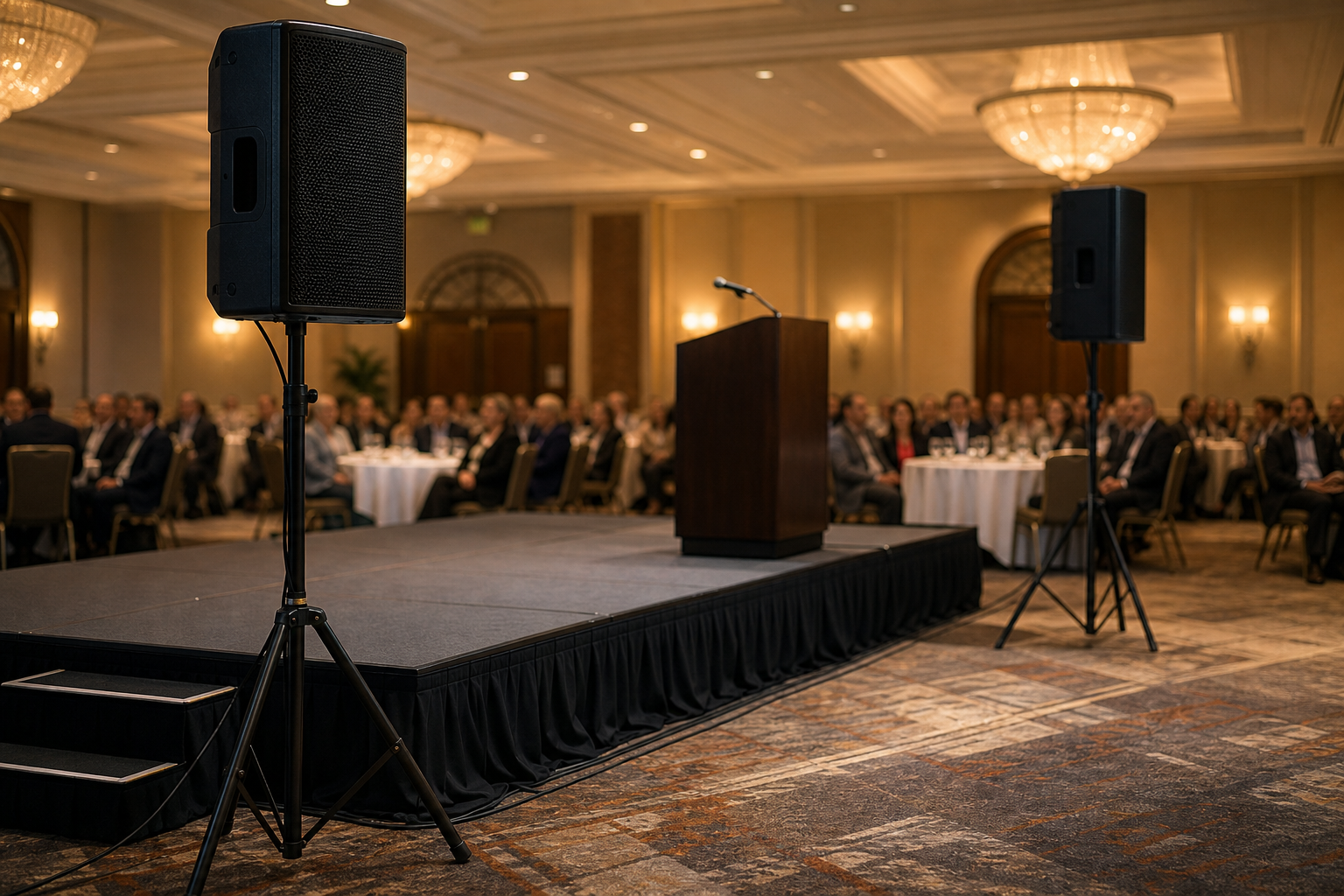
The goal is consistent volume and clarity across the audience area, without a loud zone right in front of the speakers and quiet corners at the back. For most small and mid-size events, that starts with a pair of main speakers at the front, either side of the stage.
Every loudspeaker's specification sheet lists its coverage (dispersion) angle, horizontally and vertically. Use the actual figure for the model you have: aim each speaker so that its coverage lands on the audience area and not on walls or the ceiling, and raise it high enough that the front rows don't block the sound from people behind them. Mount speakers only on stands, brackets or rigging rated for that speaker's weight, and follow the manufacturer's height and load limits.
If the audience area is wider than the main speakers' coverage, add fill speakers at the sides. If the room is long enough that the back rows hear the mains too quietly, add speakers partway back. Sound from those speakers reaches nearby listeners before sound from the stage, so on larger systems they are delayed electronically to line up with the mains; the right delay is set from the actual distances between the speakers, not guessed.
Subwoofers can be placed with more flexibility than main speakers, but how directional they are depends on the enclosure and how several are arranged, so follow the manufacturer's placement guidance. Never fly a subwoofer or any speaker without rigging points rated for it and a qualified rigger. Outdoors, low frequencies carry to neighbors; check the local noise ordinance and the venue's own sound limits before you set levels.
3. Cable Runs and Signal Flow
Signal flow is the path sound takes from source to speaker. Start at the sources (microphones, instruments, laptops and playback devices) and work downstream. Microphones connect to the mixer with XLR cables, which carry a balanced signal that helps reject interference over longer runs.
Run cables along walls or under cable ramps, never loose across walkways, and tape them down with gaffer tape. Label both ends of every cable. When something stops working mid-event, labels let you find the right cable in seconds instead of tracing it by hand.
From the mixer, the main outputs feed the speakers. Powered speakers have built-in amplifiers and take a line-level signal straight from the mixer's main outputs. Passive speakers need a separate power amplifier, connected with speaker cable, not instrument cable.
Keep audio cables away from power cables where you can, and where they must cross, cross them at right angles rather than running them side by side. If you hear hum or buzz, cable routing is one of the first places to look.
Sketch a simple signal-flow diagram before you connect anything. It catches the missing adapter for a presenter's laptop or the podium mic with no cable long enough to reach it, and it's what you'll troubleshoot from when something goes quiet during the event.
Make every connection with the mixer's channel faders down and the speakers powered off or turned down. Power the speakers on after everything upstream is connected and running, and turn them off first at the end. That keeps connection pops and surprises away from the speakers and the audience.
4. Mixing Board Basics: Gain Structure and EQ
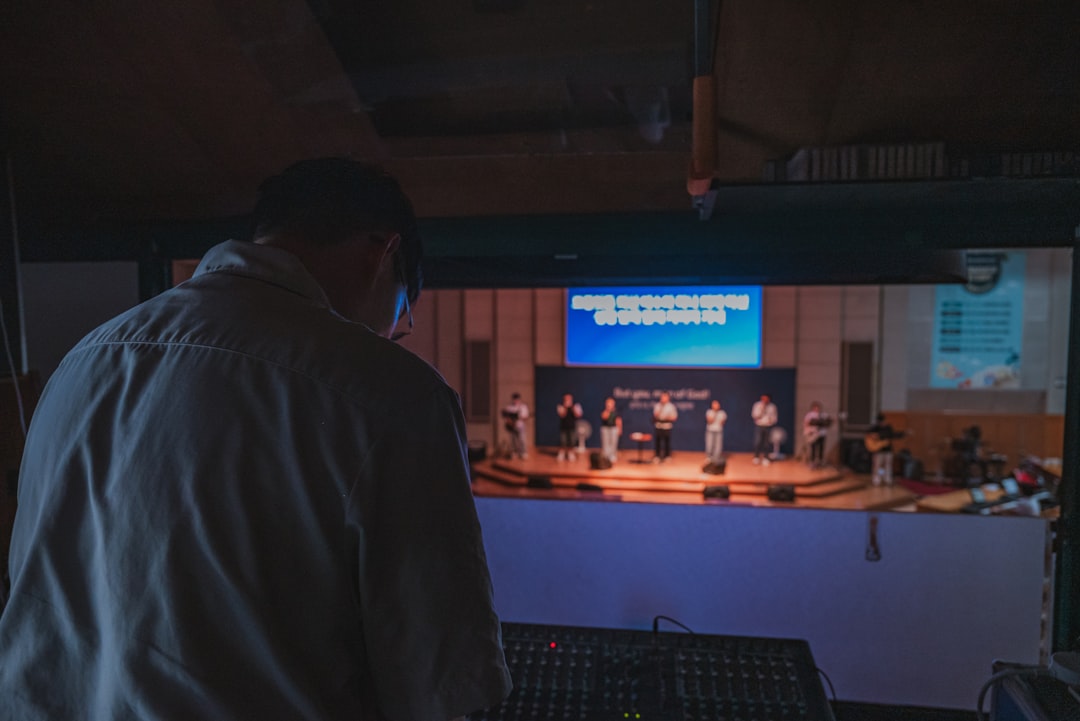
Gain structure means setting the level at each stage of the signal path so the sound is loud enough to stay well above the system's background noise, but never so hot that any stage distorts. The input gain control at the top of each channel is the first and most important of those stages.
Set it with the real source connected and working: ask the presenter to speak at their actual presentation volume, not a quiet "testing, testing", or play the real music track. Raise the gain until the channel meter shows a solid signal with its loudest moments still well below the mixer's clip or overload indication. Meters differ between mixers (analog meters and digital meters use different scales), so check your mixer's manual for where it recommends peaks should sit. If the gain is too high, you'll hear distortion; if it's too low, you'll be pushing everything else up to compensate and bringing up noise along with the signal.
Once gain is set, EQ shapes each channel's tone. Start flat and listen before you touch anything. When something sounds wrong, find the frequency that is causing it, by ear or with an analyzer, and reduce that rather than boosting everything around it. A high-pass filter on speech microphones is a common way to reduce low-frequency rumble and handling noise, but set it by listening to the actual voice and mic.
The master fader sets the overall level going to the speakers. Many engineers leave it at a steady position and balance the show with the channel faders, which makes it easier to see what each input is doing.
5. Microphone Selection and Wireless Coordination
Handheld dynamic microphones are the everyday choice for presentations, toasts and panels. Lavalier mics clip to clothing and free the presenter's hands but can pick up clothing rustle. Headset mics keep the capsule at a steady distance from the mouth as the presenter moves, which keeps the level steadier. Whatever you choose, a directional microphone aimed at the talker and away from the speakers helps against feedback: Shure recommends to "use a directional microphone to increase the amount of gain before feedback."
Wireless mics let presenters move, but they need frequency planning. According to the National Federation of State High School Associations' summary of FCC rules, "Most wireless microphones that operate today use spectrum in the TV bands," and the FCC permits both licensed and unlicensed operation; other systems use bands such as 900 MHz, 2.4 GHz or 5 GHz. Which frequencies are clear changes from venue to venue and with whatever else is operating nearby, so scan on site rather than relying on settings from another event.
Use your system's built-in scan or its manufacturer's coordination software to choose clear frequencies, and don't add another wireless channel without checking that it fits alongside the rest. Test every wireless mic in every part of the venue it will be used; walls, bodies and metal structures can block the signal.
Bring fresh or fully charged batteries for every transmitter, check the manufacturer's rated battery life against the length of the program, and swap batteries during breaks rather than mid-session.

Photo by Matthias Wagner on Unsplash
Wireless microphone setup, step by step
Possible failure points for a wireless mic include interference, flat batteries, a transmitter switched off or muted, and a blocked signal path. Work through these steps each time:
- Scan for open frequencies first. Run the scan at the venue, with the other wireless gear that will be running switched on, and assign frequencies from the result.
- Pair each mic with its receiver. Follow the system's own pairing method, then label each mic and receiver pair with matching tape colors.
- Test at real performance distance. Walk the mic along the actual presentation path during soundcheck, not just next to the receiver.
- Check battery status before every use. Compare rated runtime with the full program plus a buffer, and keep charged spares backstage.
- Set any transmitter gain before the mixer gain. Some transmitters have their own gain or sensitivity adjustment and some don't; follow the transmitter's manual, then set the mixer's channel gain.
Lavalier mics need extra attention: position the mic according to its manufacturer's guidance, pointed toward the mouth, and secure the cable so clothing doesn't rub it. For panels, being able to mute each mic separately keeps unused mics closed; Shure advises you to "reduce the number of open microphones – turn off microphones that are not in use."
6. Soundcheck: Testing and Troubleshooting
Soundcheck is where you catch the failed cable, the laptop with an output nobody brought an adapter for, and the lavalier that rustles against a necklace. Schedule it with enough time to fix what it finds, and allow more for events with several presenters, live music or video playback.
Test each input on its own first. Play music through the playback source to confirm each speaker is working and connected to the right output. Then test mics one at a time: have someone speak at presentation volume while you listen from several audience positions, checking for feedback, weak spots and uneven coverage.
Walk the whole audience area. You're listening for similar volume and clarity everywhere; if a corner sounds muffled or boomy, adjust speaker aim or EQ. If you hear feedback, reduce that mic's level, move the mic or speaker so the mic isn't picking up the speaker, and only then reduce the specific frequency that rings. Shure notes that "reducing the offending frequency with equalization can be more effective than simply lowering the overall system volume," and that feedback shows up at different frequencies in different systems, from low hoots to high whistles, so find the actual one.
Test every transition: presenter mic to video, video back to Q&A mics, background music during breaks. Connect the presentation laptop and play any video with sound. For scripted programs with cues, run a rehearsal if you can; it catches timing problems and lets presenters get comfortable with the mics.
Live troubleshooting checklist
Run through this before doors open, so there's time to fix what you find:
- Feedback: Pull the channel down, check mic position relative to the speakers, then reduce the ringing frequency you identified.
- Hum or buzz: Check cable routing and connections, and look for a ground loop. Radial Engineering explains that a DI box's ground lift switch "lifts the pin-1 ground connection" on the audio cable and "can help stop the ground loop from occurring," and that an isolation transformer is "a much more effective way of removing noise caused by ground loops." Use a DI or isolation transformer on the audio signal only. Never remove, cut or bypass the ground (earth) pin on a power cord or use a ground-defeating adapter on mains power; that ground is an electrical safety protection.
- Dead channel: Confirm phantom power is on if the mic needs it, check the cable at both ends, and try another channel before assuming the mic failed.
- Uneven volume between speakers: Check that both speakers are fed the same way, that neither channel is panned hard to one side, and that the speakers' own level controls match.
- Wireless dropout: Check the battery and transmitter, give the receiver antennas a clear line of sight to the stage, check for new wireless gear switched on nearby, and move to a spare clear frequency from your scan.
Keep a small kit on hand: spare XLR cables, spare batteries, a DI box with a ground lift, gaffer tape and a wired backup mic in case wireless fails completely.
For professional reference, AVIXA publishes the ANSI/AVIXA A102.01 standard on audio coverage uniformity, used in designing permanently installed systems.
7. Day-Of Operations and Real-Time Adjustments
Once the event starts, someone should be at the mixer for the whole program. If the operator needs a break, a second person who knows the system should take over. Problems like feedback get worse quickly if nobody is watching the faders.
Ride the faders during presentations. Experienced speakers tend to keep a steady distance from the mic; others drift off-mic, turn away or suddenly get louder. Your job is to keep the level steady for the audience, which sometimes means pulling a channel down quickly.
If you hear ringing that could build into feedback, pull that channel's fader down first, then find the cause: a mic too close to a speaker, too much gain, or a hand covering the mic's grille. Fix the cause before reaching for more EQ; placement and gain are the first line of defense.
Keep the troubleshooting kit within reach, along with a flashlight, and keep it organized so a replacement cable is in your hand quickly. Stay in contact with the event coordinator or stage manager: warn them before a battery swap, and confirm cues for music and presenter intros so there's no dead air.
FAQ: Setting Up a Live Event Sound System
How many speakers do I need for my event?
It depends on the room's size and shape, how reflective it is, the audience layout, whether the program is speech or music, and the specific speakers' coverage angle and maximum output. Headcount or wattage alone doesn't answer it. Measure the room, check each speaker's coverage and output specifications against the distance to the farthest listener, and add side fills or speakers partway back where the mains don't reach. The simplest route is to send the rental company your room dimensions, audience layout and program and let it size the system; VENEGEEST's AV equipment catalog lists its speakers.
What's the difference between powered and passive speakers?
Powered (active) speakers have built-in amplifiers: you plug in power and send a line-level signal from the mixer directly to the speaker. Passive speakers need external power amplifiers and speaker cable, which adds equipment and setup but lets you choose the amplifiers. For a temporary event setup, powered speakers are usually simpler to deploy.
How do I prevent feedback during my event?
Feedback happens when a microphone picks up sound from a speaker and it loops back through the system. Keep mics and speakers as far apart as practical, with the speakers in front of the mics and the mics pointed away from them. Use directional mics close to the talker, turn off mics not in use, and set gain properly. If feedback starts, pull that channel down, fix the cause, and then reduce the specific frequency that rings.
Can I use Bluetooth speakers for my event?
Bluetooth is a way of sending audio to a speaker wirelessly; it says nothing on its own about how loud or clear the speaker is. Whether a Bluetooth system suits an event depends on the actual speakers' specifications, the size of the room and what you need it to do. VENEGEEST's Bluetooth Speaker System spreads six speakers around a space from one controller and includes two mics, which suits background music and short speeches. For a larger audience, a band or a program built around live microphones, use PA speakers with wired connections, and test any video playback with sound before the event.
What should I do if a wireless mic stops working mid-event?
Hand the presenter the backup mic first so the program keeps going. Then check the transmitter's battery and that it's switched on and unmuted, check the receiver is showing signal, and switch to a spare clear frequency if interference is the problem.
How long does it take to set up a sound system for a live event?
It depends on the number of speakers and microphones, the room, load-in access and whether the venue needs anything approved first. Build a schedule for your specific event with time for load-in, cabling, gain setting, a full soundcheck and a buffer to fix problems before doors open. If VENEGEEST delivers and sets up, ask for setup time to be scheduled with your quote.
What size sound system do I need for a 100-person event?
There is no single answer for 100 people: a seated banquet with speeches and a standing dance party in a hard-walled room need very different systems. Share the room's dimensions and surfaces, the audience layout and the program, and size the system from the speakers' coverage and maximum output. VENEGEEST's Commercial PA Speaker rents for $200/day.
Do I need a sound engineer or can I run it myself?
Simple playback and a single mic (a toast, a short announcement) can be run by one prepared person who has set the gain before the event. With several microphones, live music or a long program, a dedicated operator at the mixer is worth considering, because levels need adjusting as speakers change and the room fills.
Why does my wireless microphone keep cutting out?
Common causes include interference from other wireless equipment, a low battery, and the signal path being blocked by bodies, walls or metal. Run a fresh frequency scan on site rather than reusing settings from another venue, check batteries, and give the receiver antennas a clear view of the stage.
Need equipment for your next event? Browse the full AV rental catalog or see our corporate event AV checklist. Delivery, setup and technicians are scoped and quoted to your event, and same-week delivery is available for most items.